Codex Worktree Changes Missing From Your Local Branch? Check This First
If Codex finished a task but its changes are missing from your usual project folder or current Git branch, do not delete the task or reset Git yet. First check whether the task ran in Local or a Worktree. A Worktree uses a separate checkout, so a clean git status in Local does not prove that the changes are gone.
First, determine whether the files are gone or in another checkout
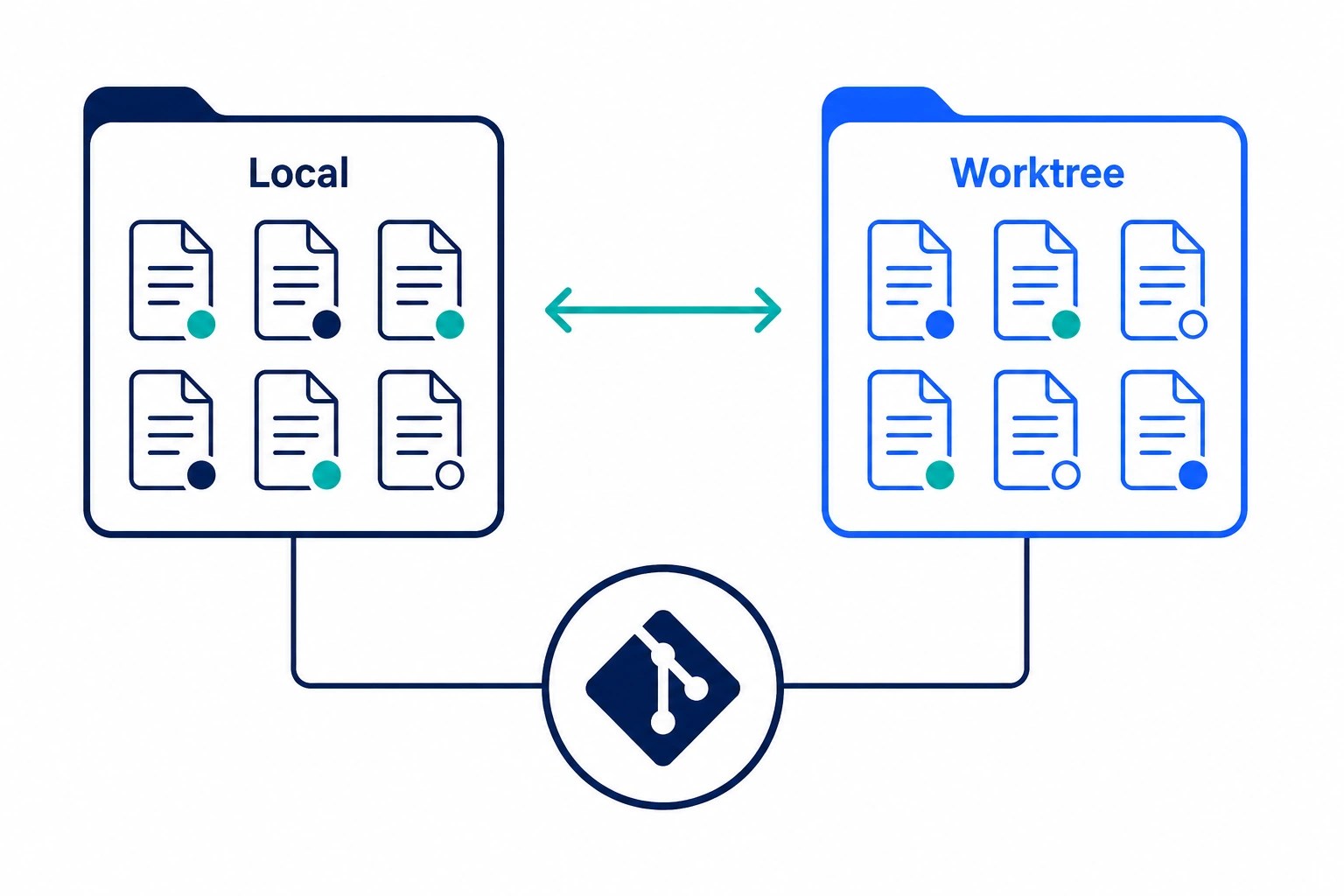
OpenAI’s official Worktrees documentation describes a Worktree as a second checkout of the same Git repository. The checkouts share Git metadata such as commits and branches, but each has its own working files and checkout state.
That means both of these statements can be true at the same time:
git statusis clean in the Local checkout you normally use.- The Codex Worktree still contains modified or untracked files.
Reopen the Codex task that made the changes. In that task’s integrated terminal, run these inspection commands before moving files or switching branches:
git rev-parse --show-toplevel
git status --short --branch
git branch --show-current
git worktree list --porcelain
git log -1 --oneline --decorate
If the first command reports a different path from your usual project folder, you are looking at another checkout. If git branch --show-current prints nothing and the first line of git status --short --branch shows HEAD (no branch), the work may be in a detached HEAD rather than lost. Codex-managed Worktrees start in detached HEAD by default, according to the current OpenAI documentation.
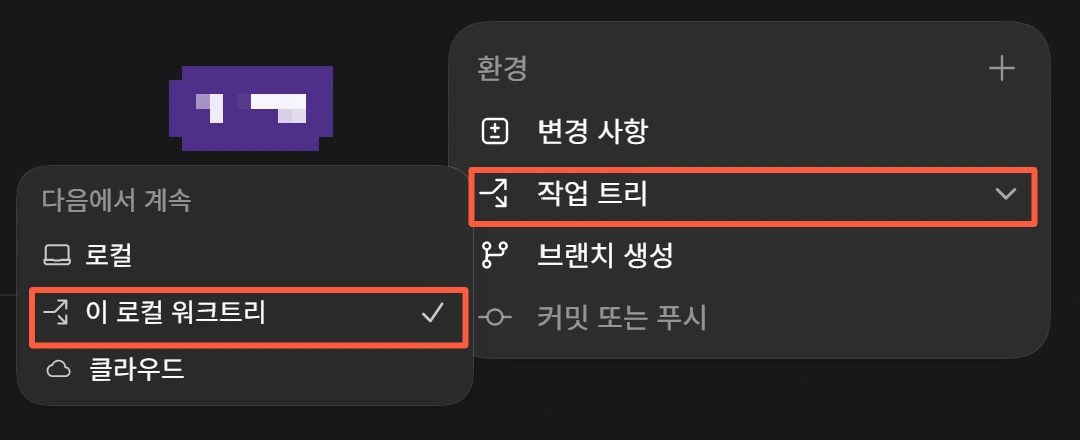
Choose the fastest safe path for where you want to continue
Once you locate the changes, decide where you want to keep working before copying files or forcing a checkout.
| What you want | Start here | Why |
|---|---|---|
| Review in your usual local folder and IDE | Choose Local from the task’s environment menu | This lets you continue the task in the Local environment |
| Keep testing and eventually push from the Worktree | Use the branch creation control in the environment panel | This attaches the Worktree changes to a named branch |
| You still do not know where the changes are | Record git status and git worktree list --porcelain only |
These commands identify the checkout and branch without changing state |
| Git says the branch is already used by another Worktree | Do not force the checkout; move the task to Local from the environment menu | Git prevents one branch from being checked out in two Worktrees at once |
Codex’s environment menu lets you choose whether to continue the task in Local, the current local Worktree, or Cloud. If you plan to finish entirely in the Worktree, use the branch creation control in the environment panel and review the resulting branch before pushing it.
Button names and placement can change with the app version and display language. This article therefore describes the action rather than asserting an older English button label. Confirm the exact wording in the current English app before adding screenshots.
Moving work between environments uses Git operations, so files ignored by .gitignore do not automatically move with the task unless they are included through Codex’s .worktreeinclude mechanism. If only an ignored local setup file appears to be missing, inspect that configuration separately instead of treating the tracked code transfer as a failure.
Compare Local and Worktree with the same Git checks
Looking at only one checkout can hide the other checkout’s changes. Run the same commands in the Codex task terminal and in your usual Local terminal:
git rev-parse --show-toplevel
git status --short --branch
git rev-parse HEAD
git diff --stat
git diff --cached --stat
Here is what each command tells you:
git rev-parse --show-toplevelshows the root path of the checkout you are viewing.git status --short --branchshows the current branch or detached HEAD plus modified, deleted, and untracked files.git rev-parse HEADlets you compare the commit currently checked out in each folder.git diff --statsummarizes unstaged changes without printing full file contents.git diff --cached --statsummarizes staged changes.
These commands are intended for state inspection and do not move files or switch branches. Their output can still reveal user paths, repository names, branch names, commit messages, and hashes. Redact those details before sharing a screenshot.

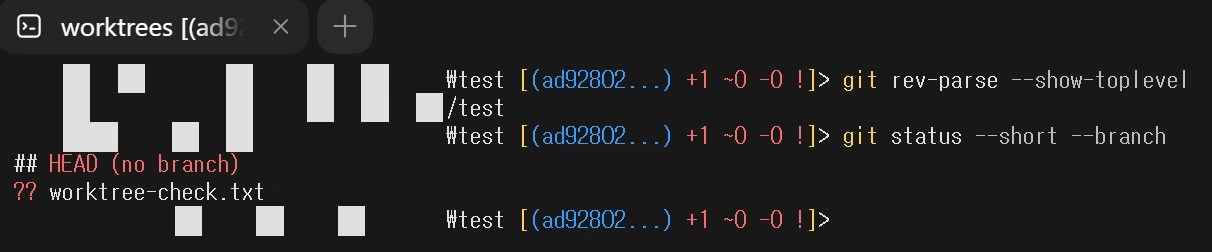
A detached HEAD is normal here, but verify it before leaving
OpenAI states that a Codex-managed Worktree is created from the HEAD commit of the selected starting branch and is not checked out as a branch by default. The resulting detached HEAD lets Codex create multiple Worktrees without adding a branch for every task.
Detached HEAD is therefore not proof of failure. The risk is losing track of which checkout contains uncommitted changes. Use this sequence:
- Reopen the Codex task that performed the work.
- Run
git status --short --branchin its integrated terminal. - If you want to continue in your usual checkout, choose Local from the task’s environment menu.
- If you want to continue in the Worktree, use the branch creation control in the environment panel.
- Run
git status --short --branchin the destination and confirm that the expected changes are present.
Do not use git reset --hard, git clean, a forced checkout, or Worktree deletion while you are still locating the changes. None of those actions is required for diagnosis, and they can remove uncommitted work.
Do not force a branch away from another Worktree
Git’s official git worktree documentation explains that a repository can have multiple working trees, but Git normally refuses to check out a branch that is already checked out elsewhere. The OpenAI documentation gives the same practical rule: one branch cannot be checked out in Local and another Worktree at the same time.
If an error says that a branch is already used by worktree, locate the checkout that owns it:
git worktree list --porcelain
Read each worktree path together with its branch refs/heads/... entry. If the branch belongs to the Codex Worktree and you want it in Local, reopen that task and move it to Local from the environment menu instead of forcing the branch checkout. If you intend to stay in the Worktree, keep Local on another branch while you review the changes there.
If moving between environments fails, collect evidence first
If moving to Local or a Worktree stops partway through or reports a branch conflict, do not keep retrying with forced Git commands. Capture the current state first:
git status --short --branch
git rev-parse --show-toplevel
git rev-parse HEAD
git worktree list --porcelain
Then answer these questions:
- Do Local and the Worktree belong to the same repository according to the root path and Worktree list?
- Is the intended branch already attached to another Worktree?
- Are the changes uncommitted, or were they committed while HEAD was detached?
- Have you recorded the task title and current commit before archiving the task or removing any Worktree?
OpenAI currently says that the desktop app saves a snapshot before it automatically deletes a Codex-managed Worktree and offers a restore option when the associated task is reopened. That does not establish the same recovery guarantee for a folder manually deleted in File Explorer or removed with Git commands. Locate the changes and complete a safe transfer instead of relying on recovery.
Frequently asked questions
Does a clean git status in Local mean Codex made no changes?
No. If the task ran in a Worktree, the modified files can be in a different folder. Reopen the task and run git rev-parse --show-toplevel and git status --short --branch in its integrated terminal.
Does HEAD (no branch) mean the Codex task failed?
Not in a Codex-managed Worktree. Detached HEAD is the documented default. Choose Local from the environment menu to continue in your usual checkout, or use the Worktree’s branch creation control to keep managing the work there. Then check the status again.
Can I just copy the Worktree folder into my Local folder?
A simple folder copy can miss Git’s branch state, staged changes, and deletions. Record the checkout and change list first, then use the environment menu to continue in Local or create a branch in the Worktree.
Summary
When Codex changes are missing from your current branch, follow this order: reopen the task, compare the Local and Worktree paths, inspect Git state, then choose Local or create a branch in the Worktree. Before closing the task, compare git status --short --branch and git worktree list --porcelain in both terminals.