iPhone Face ID Not Working or Unavailable? Check Before Resetting
If Face ID fails once, do not reset it immediately. First decide whether the iPhone is asking for the passcode as a normal security step. Then check Face ID & Passcode, remove anything covering the TrueDepth camera, and test the correct distance and orientation. If the iPhone repeatedly says Face ID is unavailable or will not begin a new face scan, the problem may need service rather than another settings change.
This guide uses the US English labels in Apple’s documentation checked on September 2, 2026. Apple’s iOS 26 update page still lists iOS 26.6.1 as its newest entry. The overlap between Apple’s iOS 26 compatibility list and Face ID model list is Face ID-equipped iPhone 11 and later models. iPhone SE (2nd and 3rd generation) uses Touch ID, so this guide does not apply to those models. iPhone X, XS, XS Max, and XR support Face ID but not iOS 26; the same diagnostic order is useful, but menu positions and orientation support can differ on their older iOS releases.
First, separate a normal passcode prompt from a Face ID failure
A passcode screen does not prove that Face ID is broken. Apple’s Face ID security documentation says a passcode is required after the device restarts, after five unsuccessful face matches, and in several other security conditions. Enter the passcode once, then check whether the next Face ID attempt works normally.
| What you see | Most likely scope | Check first |
|---|---|---|
| A passcode is required once after a restart or update | Expected security behavior | Unlock with the passcode, then try Face ID again |
| Only iPhone Unlock fails, while an app or purchase prompt works | The iPhone Unlock setting or device orientation | Check the feature switches under Face ID & Passcode |
| Face ID fails in one app only | App permission or the app’s own sign-in state | Check Other Apps and the app’s security settings |
| Several Face ID features fail, but a new face can still be enrolled | Camera obstruction, distance, orientation, or a changed appearance | Remove obstructions and restart before resetting Face ID |
| Face ID is unavailable or Set Up Face ID cannot begin | TrueDepth camera or repair state | Check updates and restart once, then use the service criteria below |

Run the fastest reversible checks first
Follow Apple’s current Face ID troubleshooting order and start with checks that do not delete an enrolled face or change account data.
- Open Settings > General > About and record the iPhone model and iOS version.
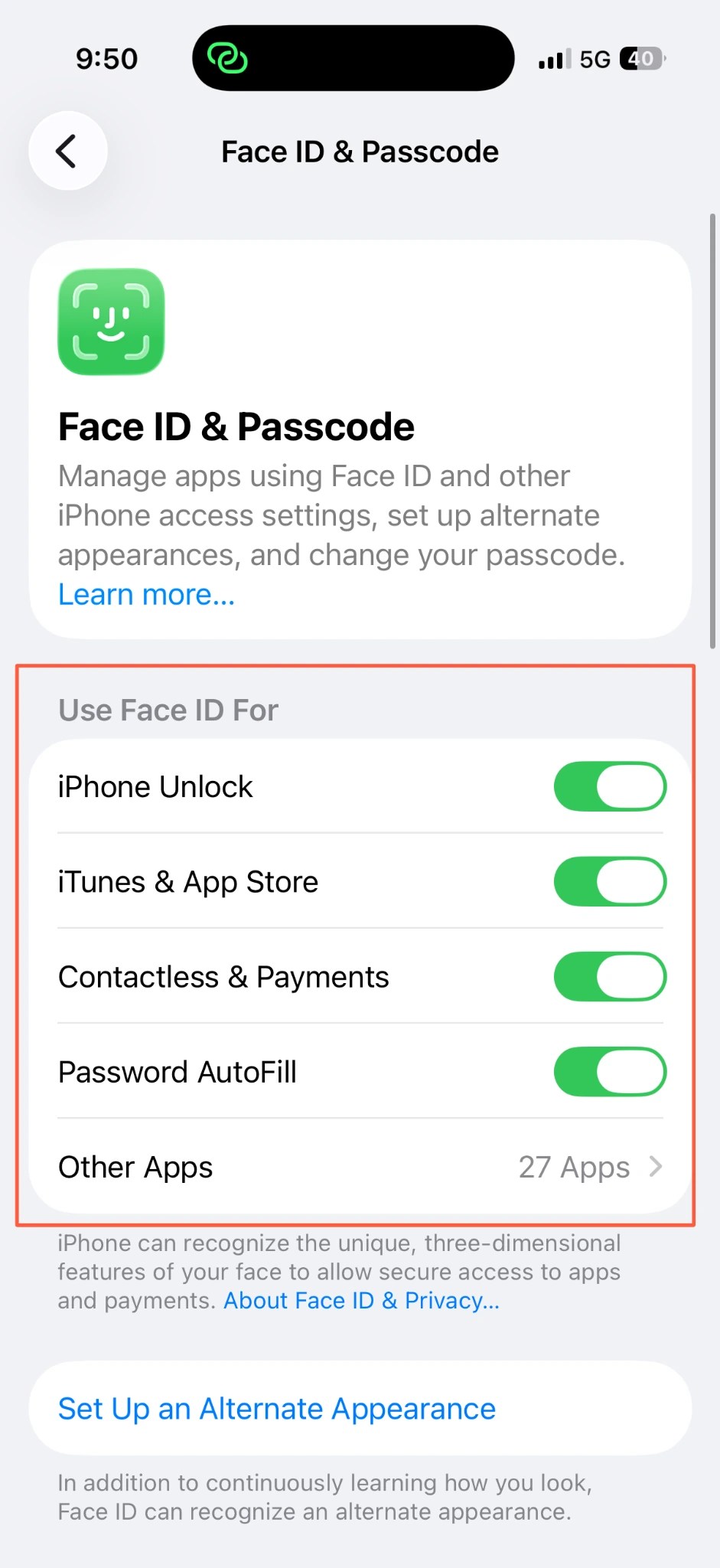
- Open Settings > Face ID & Passcode and confirm that Face ID is set up and the affected feature is turned on.
- Gently clean the area around the TrueDepth camera. Check whether a case or screen protector overlaps the camera area.
- Temporarily remove a hat, mask, or sunglasses that might hide your eyes, nose, or mouth.
- Hold the iPhone about 10–20 inches (25–50 cm) from your face and look directly at the camera.
- Restart the iPhone, unlock once with the passcode, and try Face ID again.
If Software Update cannot check for the current release, use the iPhone Unable to Check for Update guide before resetting Face ID. It separates network, compatibility, storage, and downloaded-update problems without assuming Face ID is the cause.
If unlocking fails, check orientation and attention conditions
Apple says Face ID works best when the iPhone is about 10–20 inches from your face. Orientation support depends on the model and how Face ID is being used.
- On iPhone 13 and later with iOS 16 or later, standard Face ID works in portrait and landscape orientation.
- On earlier Face ID iPhone models, test with the iPhone upright in portrait orientation while facing the TrueDepth camera.
- Face ID with a Mask requires iPhone 12 or later with iOS 15.4 or later and works only in portrait orientation.
- Face ID with a Mask relies on the area around your eyes. Remove sunglasses and lower a mask that sits too close to your eyes before testing.
If your appearance has changed significantly but Face ID still works sometimes, you can consider Settings > Face ID & Passcode > Set Up an Alternate Appearance. Do not add another person’s face for convenience. Face ID can authorize device access, payments, and app sign-ins.
If only one feature or app fails, do not re-enroll your face
When Face ID unlocks the iPhone but fails only for App Store purchases, Password AutoFill, or one app, check that feature’s permission before treating the TrueDepth camera as faulty.
- Open Settings > Face ID & Passcode.
- Under Use Face ID For, confirm that the affected feature is turned on.
- If one third-party app is affected, open Other Apps and check its Face ID permission.
- If the app was signed out or has never used Face ID, sign in manually once and review the app’s own biometric sign-in setting.
Do not make a purchase merely to test a settings switch. Use the Lock Screen or a non-sensitive app screen that does not charge money or change important data.

Reset Face ID only when a new enrollment can start
Consider a reset only after checking the feature switches, camera area, distance, orientation, and one restart—and only when Set Up Face ID still opens normally.
- Confirm that you know the device passcode.
- Open Settings > Face ID & Passcode > Reset Face ID.
- Tap Set Up Face ID and enroll your face again.
- After enrollment, test the Lock Screen without making a purchase or changing account data.
Resetting Face ID deletes the enrolled Face ID data from the device, so do not use it as a repeated diagnostic step. If enrollment will not begin or the iPhone shows a TrueDepth warning, another reset is unlikely to fix the underlying problem. If the issue began after a drop, liquid exposure, or front-camera repair, check the service branch first.
Use the TrueDepth service criteria when Face ID stays unavailable
Apple says service might be needed when the camera does not work and Face ID cannot be set up. Move to service evidence rather than repeating resets when any of these conditions remains after an update check, obstruction check, and one restart:
- The iPhone repeatedly reports that Face ID is unavailable or disabled.
- Set Up Face ID will not start or cannot complete enrollment.
- The front camera is not working normally.
- The problem began after a drop, liquid exposure, or front-camera repair.
On iPhone 12 and later, open Settings > General > About to check Parts and Service History if the front camera has been repaired. Apple’s genuine iPhone front camera guidance says Finish Repair, an incomplete calibration, a nongenuine part, or a part that is not functioning as expected can prevent Face ID from being used.
The TrueDepth system includes laser components. Do not open the iPhone or improvise a repair. Apple recommends service by a trained technician using appropriate parts and procedures. When contacting support, prepare the model, iOS version, exact error, approximate start time, and repair history. Do not send your device passcode or facial enrollment data.
Frequently asked questions
Is Face ID broken if the iPhone asks for the passcode after a restart?
No. A passcode is expected immediately after a restart and in several other security conditions. Unlock once with the passcode, then check whether the next Face ID attempt succeeds. Troubleshoot further only if Face ID continues to fail across normal attempts.
Why does Face ID fail in landscape orientation?
Standard Face ID works in landscape on iPhone 13 and later with iOS 16 or later. Test earlier models in portrait orientation. Face ID with a Mask remains portrait-only even on supported models.
Should I keep resetting Face ID when it says unavailable?
No. If the same alert remains after removing obstructions, checking for updates, and restarting once—or if enrollment cannot begin—record the error and repair history, then contact Apple Support or an authorized service provider.
Summary
Narrow the problem in this order: expected passcode request, feature settings, camera obstruction and position, restart, ability to re-enroll, then service. This keeps the first checks reversible and avoids deleting the enrolled face before you know whether the TrueDepth system can create a new one. Record the exact error, iPhone model and iOS version, and any recent front-camera repair as your next step.