iPhone Unable to Check for Update? Try Another Network First
If Settings > General > Software Update shows Unable to Check for
Update, do not reset the iPhone or start deleting photos. Retry once on the
same Wi-Fi network, then compare the result on a different trusted Wi-Fi
network. After that, check device compatibility and available storage. Delete
a downloaded update only if an iOS update actually appears in iPhone Storage.
If none of those checks works, back up the device before updating with a Mac
or Windows PC.
This guide was checked against Apple’s English support documentation on
August 4, 2026. Apple’s iOS 26 update list currently includes iOS 26.6, but
the update shown on an iPhone depends on its model and installed software.
Record the exact stage and device details first
“My iPhone will not update” can describe a check failure, a download failure,
or an installation failure. Record the exact message before dismissing it,
then use this table to choose the first check.
| What you see | Check first | Section to use |
|---|---|---|
Unable to Check for Update or a connection message |
Retry the same Wi-Fi, then another Wi-Fi | Compare networks |
| The update appears but will not download | Wi-Fi and iPhone Storage | Check storage |
| Downloading finishes but preparation or installation stalls | Power and any downloaded update file | Download the update again |
| The latest iOS release does not appear | iPhone model and installed iOS version | Check compatibility |
| A Mac or PC cannot recognize the iPhone | Cable and computer connection | Use Apple’s computer guidance |
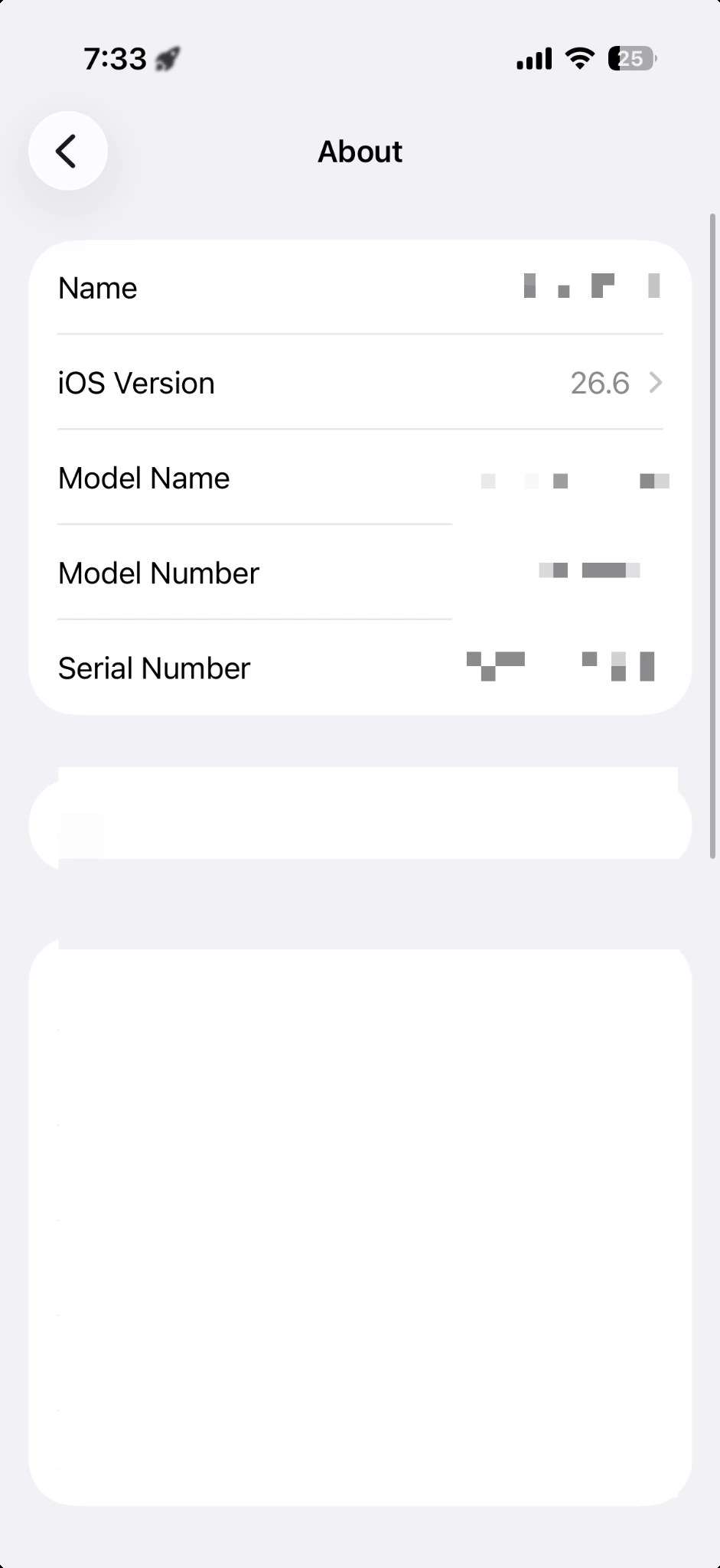
Open Settings > General > About and record the Model Name and iOS
Version. Redact the device name, serial number, IMEI, EID, Wi-Fi Address, and
Bluetooth address from any public screenshot. In Settings > General > iPhone, check only the available space and whether an iOS update entry exists.
Storage
Follow the fastest safe order

- Record the error, iPhone model, and installed iOS version.
- Connect the iPhone to power and retry once on the same Wi-Fi network.
- If it still fails, do not delete a VPN or filtering app at random. Compare
the result on another trusted Wi-Fi network. - If the latest release does not appear, check model compatibility.
- If an update appears but will not download, check iPhone Storage.
- Only if an iOS update is listed in iPhone Storage, delete that downloaded
installer and download it again. - If the error remains, confirm the backup and update with a Mac or Windows PC.
Apple’s guide for an iPhone or iPad that won’t update
says to retry on the same network, then use another network or a computer. It
recommends removing the downloaded update after the problem continues across
multiple networks. That order gives you no reason to erase personal data or
reset the iPhone before testing the connection.
Retry the same Wi-Fi, then compare another network
Open a trusted website in Safari to confirm that the current Wi-Fi connection
can reach the internet. A website loading does not prove that the update check
will reach Apple’s update server, so retry the update once on the same network.
If the message continues, use another Wi-Fi network that meets these conditions:
- It is a trusted home or workplace network whose password you know.
- It does not require an extra public-hotspot sign-in page.
- It can stay connected until the update finishes.
If the message specifically says that the update requires Wi-Fi, connect to
Wi-Fi instead of repeatedly trying cellular data. On a work- or school-managed
iPhone, do not remove VPN, DNS, certificate, or device-management settings.
Ask the administrator whether the device can reach Apple’s update services.
Check whether the iPhone supports iOS 26
Apple’s iOS 26 compatibility list
starts with the iPhone 11 family and iPhone SE (2nd generation) and later
compatible models. If a model is not on that list, iOS 26.6 might not appear;
that absence alone is not an update-check failure. Apple also says that the
device shows only updates compatible with its current software version.
As of August 4, 2026, Apple’s About iOS 26 Updates
page lists iOS 26.6 as the latest iOS 26 entry. Separate these situations:
- A compatible iPhone cannot load Software Update: continue checking the
network and any downloaded installer. - Software Update loads and says the device is up to date: compare the model
and installed version with Apple’s compatibility information. - A managed iPhone does not show an expected update: ask the administrator
whether an update policy is delaying it.
Check storage before deleting personal files
Open Settings > General > iPhone Storage and check the available space.
Apple says an iPhone can remove downloadable app data to make room without
affecting personal data, but you do not need to begin by deleting photos or a
large app.
If space is limited, review Offload Unused Apps and large files that already
have a verified backup. If iCloud backup space is also limited, separate device
storage from iCloud storage with ToolSolve’s iCloud backup storage guide
before removing photos.
Download the update again only if its entry exists
Use this section only if an iOS update actually appears in the list under
Settings > General > iPhone Storage. If neither the update entry nor Delete exists, do not try to create or reproduce it. Skip this section.
Update
- Open
Settings > General > iPhone Storage. - Find the iOS update in the app list.
- Open the update and tap
Delete Update. - Return to
Settings > General > Software Update. - Download the update again on stable Wi-Fi.
This removes the downloaded installer so the iPhone can fetch a new copy. Do
not delete photos or documents in its place. The new download takes time and
data, so keep the device connected to power and Wi-Fi.
If the check still fails, back up and use a computer
Apple recommends a computer when the update is not listed in iPhone Storage
or the issue continues. Confirm that important data has a current backup
before moving to this route.
- On a Mac with macOS Catalina or later, select the iPhone in Finder, open
General, and chooseCheck for Update. - On Windows, open the Apple Devices app or iTunes and select the connected
iPhone. Apple’s connection guide
confirms that current Windows setups can use either app. - If the computer cannot recognize the iPhone, or the iPhone remains on the
Apple logo without a progress bar, follow Apple’s recognition or recovery
guidance instead of treating it as a normal network check.
Recovery mode and erasing the device are separate, data-affecting procedures.
Do not use either one as an untested shortcut before confirming the backup.
Frequently asked questions
Can this error appear even when Safari works?
Yes. Apple still recommends retrying on the same network and then comparing a
different network. A successful Safari page does not establish that the update
check reached Apple’s update server.
Is it an error if iOS 26.6 does not appear?
Not always. The model and installed software determine which compatible update
appears. Check Settings > General > About before assuming the update check
failed.
Does Delete Update remove my photos?
Delete Update applies to the downloaded iOS installer listed in iPhone
Storage, not to a photo or app you select separately. If that iOS update entry
or button does not exist, the step does not apply and you should skip it.
Summary
For Unable to Check for Update, use this order: retry the same Wi-Fi,
compare another Wi-Fi, check compatibility and storage, download the installer
again only if its entry exists, then back up and use a computer. Do not begin
with a reset or personal-data deletion. Record the result of each stage so you
also have useful evidence if you need Apple Support.