iPhone App Stuck on Waiting? Fix Downloads and Updates
When an iPhone app stays on Waiting, shows a spinner without making
progress, or will not update, do not delete every app or reset the phone first.
Start by separating a problem with one download from an App Store, network,
billing, restriction, or storage problem. That distinction usually points to a
safer next step.
This guide uses the US English labels in Apple’s documentation checked on
August 28, 2026. Apple’s security releases page lists iOS 26.6.1 for iPhone 11
and later and iOS 18.7.10 for iPhone XS, iPhone XS Max, and iPhone XR. Menu
positions can differ on an older supported release or in another English
region, so follow the labels shown on your device.
Pick the branch that matches what you see

| What you see | Check first | Why it matters |
|---|---|---|
| One app says Waiting or its progress ring does not move | Prioritize that download, then pause and resume it | The rest of the App Store may still be working |
| Several apps cannot download or update | Apple System Status, then Safari on the same connection | This separates a service or network problem from one damaged download |
| The App Store opens but updates do not start | Open the App Updates list and update one app manually | It tests the account and download path without changing every app |
| You see Verification Required or a billing warning | Resolve the unpaid balance or payment issue | Apple says even free downloads can be blocked while a balance is unpaid |
| The App Store is missing or app installation is blocked | Check Screen Time purchase restrictions | A restriction can prevent installation even when the network works |
| The app is installed but absent from the Home Screen | Search the App Library | The download may have finished without adding a Home Screen icon |
| A low-storage warning appears | Review iPhone Storage | Storage cleanup is relevant only when the phone shows evidence that space is low |
If only one app is stuck, prioritize that download
Apple’s current download troubleshooting page starts with a targeted action:
touch and hold the app on the Home Screen, then tap Prioritize Download.
If the progress ring can be tapped, pause it once and resume it. Give that one
download a chance to move before changing account or network settings.
If it still does not move, restart the iPhone once and try the same app again.
Do not delete an app that contains local data unless you know how that data is
backed up and restored.
If several apps are stuck, separate the service from the connection
Check Apple System Status for an
App Store incident. Then open Safari on the same iPhone and load a page that is
not already cached. If the page will not load, test another trusted Wi-Fi
network or cellular data, if your plan allows it.
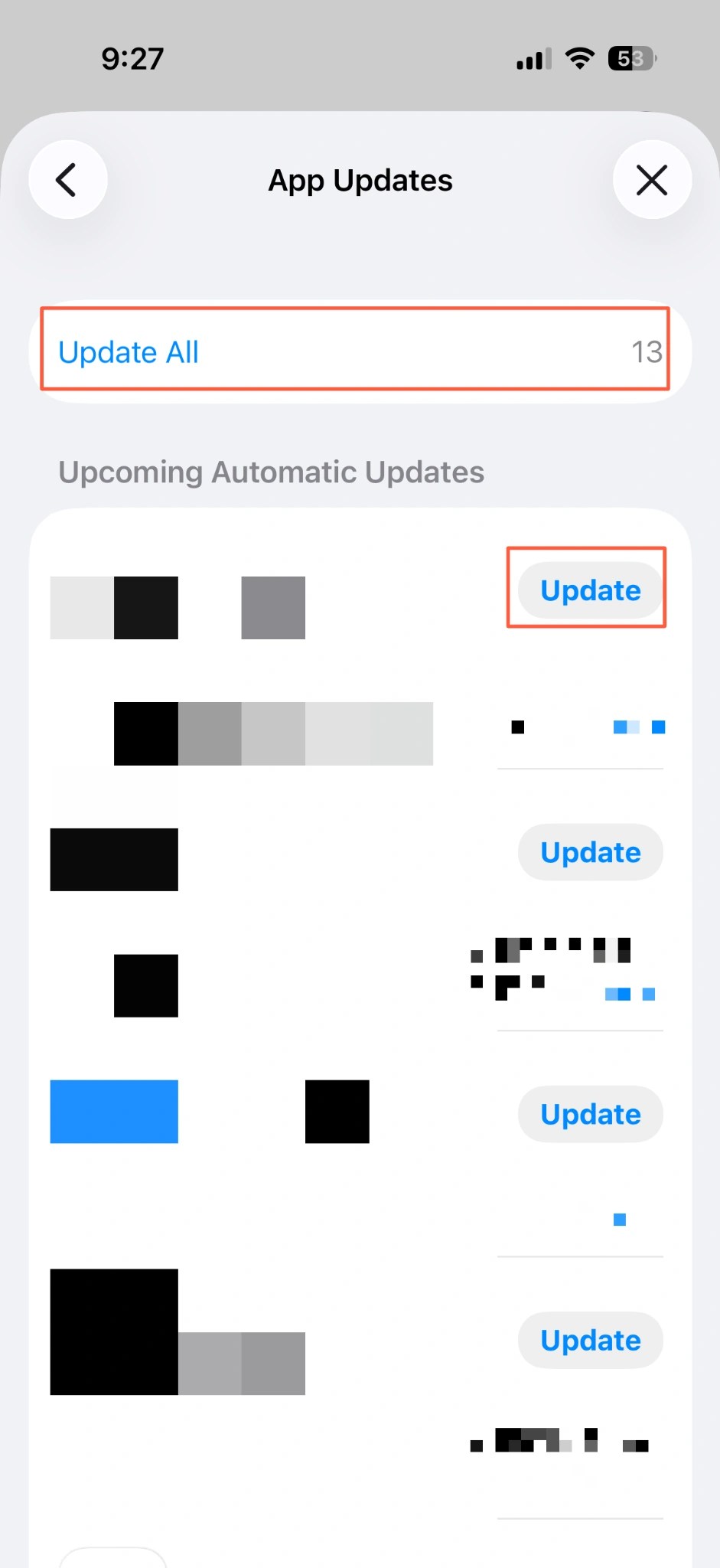
If web access works but every App Store download remains stuck, open the App
Store, tap your photo or My Account, and scroll to App Updates. Try
Update beside one app instead of Update All. Apple’s current settings
path for automatic updates is Settings > Apps > App Store > App Updates.
If both Safari and the App Store fail only on cellular data, first follow the
iPhone No Service or SOS troubleshooting guide.
Do not reset network settings until you have identified a connection problem;
that reset removes saved network details and may add work without fixing an
App Store outage or account block.
If you see Verification Required, fix the billing problem
Apple says Verification Required or billing problem with a previous
purchase means the Apple Account has an unpaid balance. While that balance
remains, new purchases, subscriptions, and even free app downloads can be
blocked.
Open Settings > [your name] > Payment & Shipping, find the item that needs
attention, and choose Fix Payment Information or Try Again when those
options appear. With Family Sharing, the family organizer’s payment method may
be the one that needs attention. Do not repeatedly remove and add payment
methods without first reading the exact message on screen.
If the App Store is missing, check Screen Time
Open Settings > Screen Time > Content & Privacy Restrictions > iTunes & App
Store Purchases. Review the setting for installing apps. On a child’s device,
a parent or guardian may need to approve the change instead of turning off the
restriction broadly.
If the download completed but no icon appeared, search the App Library before
trying to install the app again. A missing Home Screen icon does not by itself
prove that the download failed.
Clear storage only when the iPhone points to storage
When the phone shows Storage Almost Full or iPhone Storage is close to its
limit, open Settings > General > iPhone Storage. Review Apple’s
recommendations and the largest apps before deleting anything.
Apple distinguishes two actions:
- Offload App frees the storage used by the app but keeps its documents and
data. - Delete App removes the app and its related data from the iPhone.
If photos were already deleted but the storage number did not fall, use the
iPhone storage guide
before deleting more. It separates Recently Deleted, Photos usage, and iCloud
storage so that you do not erase unrelated data.
What to record if downloads still will not start
Collect a short diagnostic record before contacting Apple Support:
- iPhone model, iOS version, language, and region
- Whether one app or every app is affected
- The exact status or error message
- Whether Safari works on the same Wi-Fi or cellular connection
- Whether Apple System Status reports an App Store incident
- Whether the App Store opens and one manual update starts
- Whether Screen Time restrictions or a billing warning are present
- Available space shown in iPhone Storage
This evidence is more useful than repeating resets because it identifies
whether the failure follows an app, the connection, the Apple Account, or the
device.
Frequently asked questions
Why does a free app ask for payment verification?
Apple says an unpaid balance can block new purchases and free app downloads.
Read the exact message and resolve the balance under Payment & Shipping
before treating it as a network problem.
Should I delete the stuck app and reinstall it?
Not first. Prioritize, pause and resume, restart once, and test the App Store
connection before deleting. Delete only after confirming that important local
data can be restored.
Does resetting network settings fix Waiting downloads?
Only when the evidence points to a device-level connection problem. It will
not resolve an App Store outage, Screen Time restriction, or unpaid balance,
and it removes saved network settings.
Summary
For one app stuck on Waiting, start with Prioritize Download. For
several stuck apps, check Apple System Status, verify Safari on the same
connection, and run one manual update. Treat Verification Required, Screen
Time restrictions, and low-storage warnings as separate branches. That order
keeps the first checks reversible and avoids deleting data or resetting the
iPhone before the cause is known.