iPhone Alarm Not Sounding or Too Quiet? Check Both Volume Controls
If an iPhone alarm appears on screen but makes no sound, do not start by
turning off every Focus. First open Settings > Sounds & Haptics and raise the
Ringtone and Alerts slider to an audible level, then make sure the affected
alarm’s Sound is not set to None. If only a Sleep schedule wake up alarm is
too quiet, it has a separate Alarm volume slider. Test the result with one
temporary alarm set for two minutes from now instead of waiting for an
important morning alarm.
This guide was checked against Apple’s English support documentation on
August 29, 2026. Apple’s iOS 26 update history
lists iOS 26.6.1 as its latest entry. Apple’s iOS 26 compatibility guide
lists iPhone 11 and later, plus iPhone SE (2nd generation) and iPhone SE (3rd
generation). Menu wording can differ on older releases or in another English
region. The procedures below follow Apple’s current US English terminology;
the temporary alarm and screenshots still require device verification.
First, identify which alarm is quiet
Apple’s alarm help page covers the
volume, sound, headphones, and StandBy behavior of regular Clock alarms. A wake
up alarm created from a Sleep schedule has a separate volume control. The two
alarms can look related while needing different first checks.
| What you see | Check first | First action |
|---|---|---|
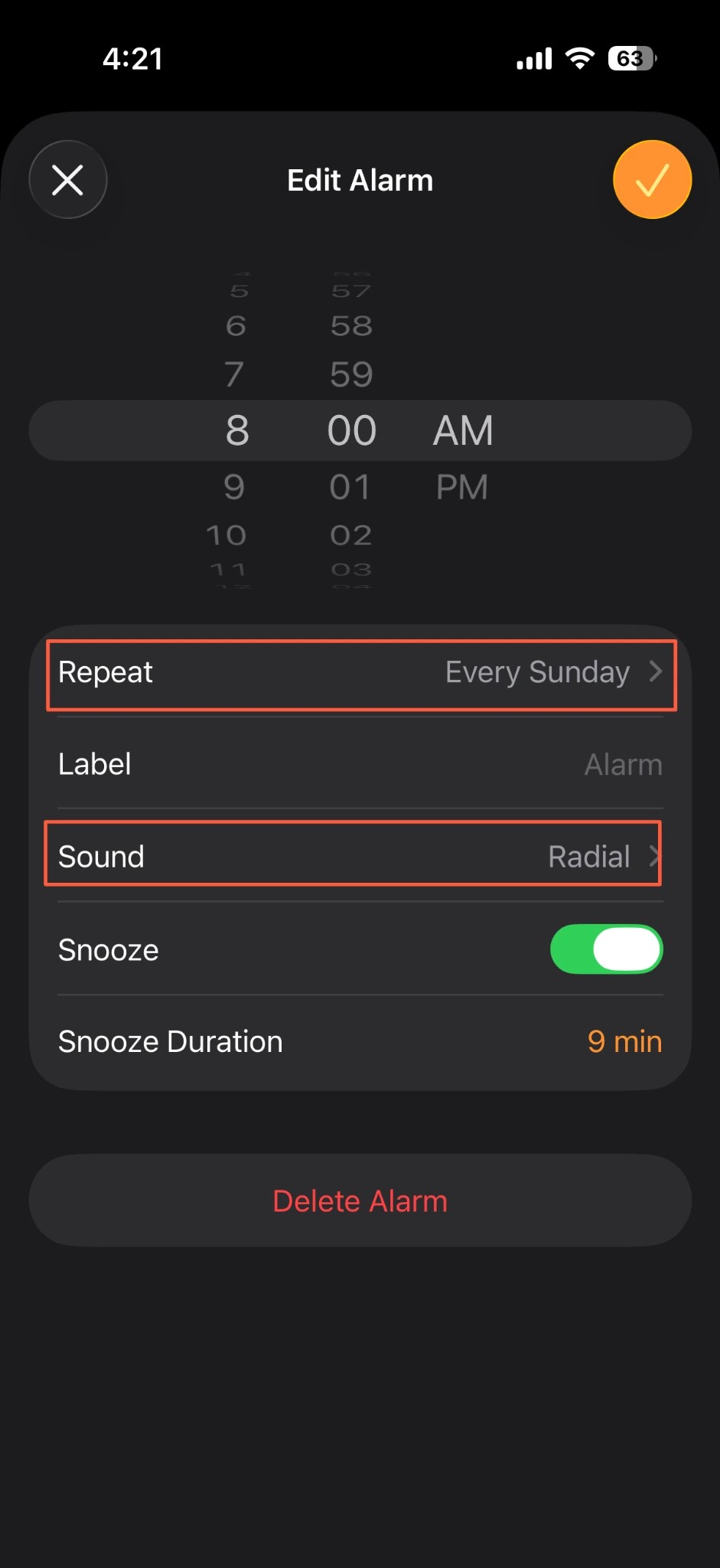
| A regular alarm appears but makes no sound | Clock > Alarms > affected alarm > Sound |
Choose an iPhone sound instead of None |
| Every regular alarm is too quiet | Settings > Sounds & Haptics |
Adjust Ringtone and Alerts directly |
| Only the Sleep schedule wake up alarm is quiet | Clock > Alarms > Change |
Adjust its separate Alarm volume |
| An alarm has no vibration in StandBy | Alarm sound and StandBy state | Make sure Sound is not None, because alarm haptics are disabled in StandBy |
| An alarm misses only certain days | The alarm’s Repeat setting |
Confirm that the intended days are selected |
| The slider preview is also silent | Sounds & Haptics and other audio | Expand the check to speaker or system audio |

The fastest check is a temporary two-minute alarm
Waiting until the real wake up time makes it harder to compare one change at a
time. At a safe time that does not conflict with an important appointment, make
one disposable regular alarm:
- Record the current position of
Settings > Sounds & Haptics > Ringtone and.
Alerts - Move the slider until its preview is clearly audible.
- In Clock, create a regular alarm for two minutes from the current time.
- Under
Sound, choose one built-in iPhone sound rather thanNone. Avoid a
song or personal audio file for this first comparison. - Lock the screen and observe whether sound and haptics occur through the
built-in speaker when the alarm time arrives. - Record the time and result, then delete the temporary alarm.
If this alarm sounds normally, compare the original alarm’s Sound, Repeat,
and wake up settings before treating the phone as faulty. If the temporary
alarm appears but stays silent, continue with the two volume paths below rather
than creating several more alarms.
If regular Clock alarms are quiet, check Ringtone and Alerts
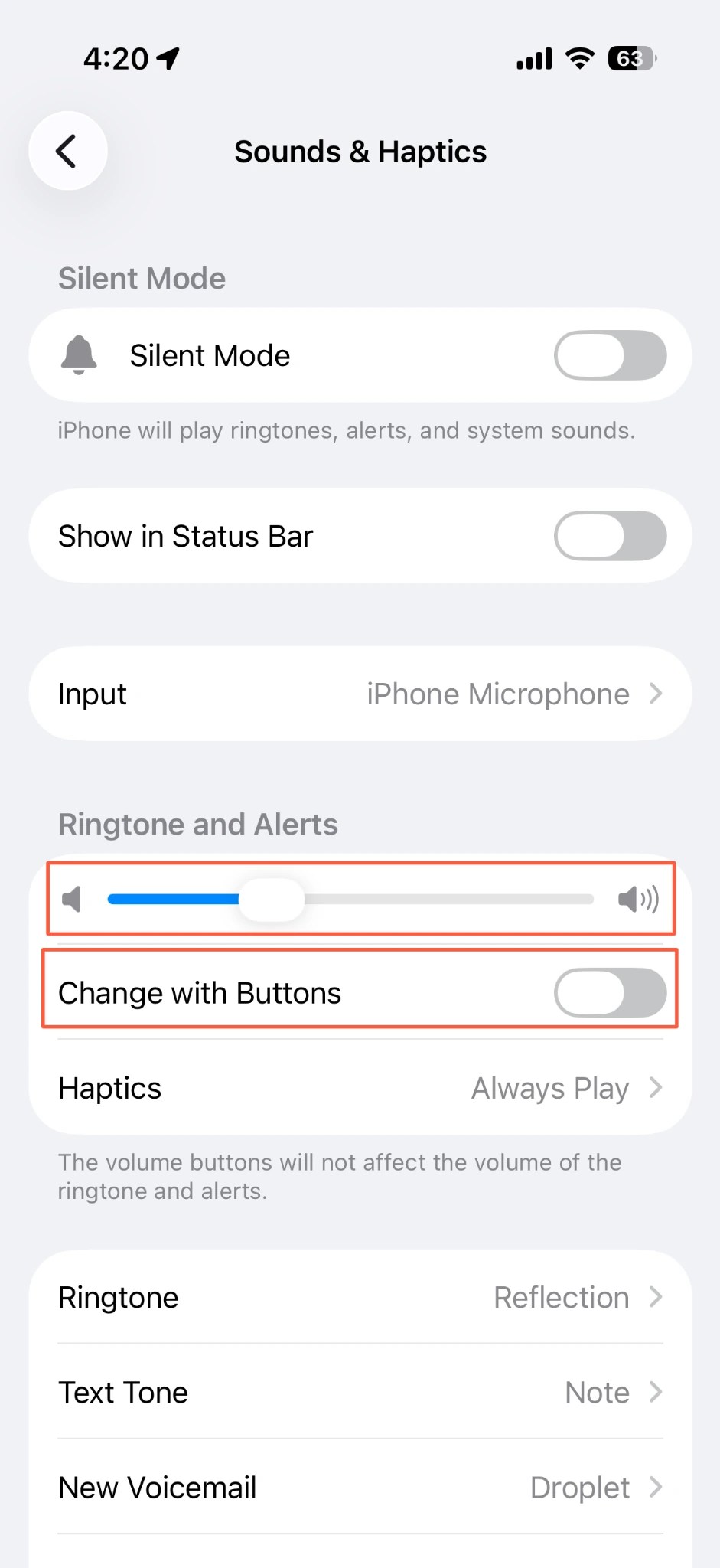
Apple directs users to Settings > Sounds & Haptics > Ringtone and Alerts for
the regular alarm volume. Raising only the music or video volume in Control
Center does not confirm that this slider is high enough.
- Open
Settings > Sounds & Haptics. - Slowly move the
Ringtone and Alertsslider and listen for the preview. - If you do not want the side buttons to change this level accidentally, turn
offChange with Buttons. Apple’s volume guide
explains that this keeps the ringer and alert volume locked in Settings. - Open the affected regular alarm in Clock and confirm that
Soundis not
None. - For a repeating alarm, confirm that the intended day is selected, then tap
Save.
Do Not Disturb, another Focus, the Ring/Silent switch, and Silent mode do not
stop the standard alarm sound, according to Apple. Changing every Focus
notification permission is therefore not the first fix. Apple also says that
when headphones are connected, the alarm plays through both the iPhone’s
built-in speakers and wired or wireless headphones at the set volume.
If only the wake up alarm is quiet, use its separate volume
When a Sleep schedule is configured, the Clock app can show a wake up alarm.
Apple’s wake up alarm guide
places Sounds & Haptics and Alarm volume under its own Alarm Options.
- In Clock, tap
Alarms. - Tap
Changefor the wake up alarm. - Scroll to Alarm Options and make sure the alarm is on.
- Under
Sounds & Haptics, choose an audible sound and haptic pattern. - Move the
Alarm volumeslider to an appropriate level. - Read the final choice carefully and decide whether to change only the next
alarm or the recurring Sleep schedule.
If regular alarms are loud enough but the wake up alarm is not, check this
separate slider first. If Clock does not show a wake up alarm or Change, you
may not be using a Sleep schedule. You do not need to create one just to find a
menu that is not relevant to your current alarm.

Do not mistake missing vibration in StandBy for a broken alarm
Apple says alarm haptics are disabled while StandBy is in use. If you depend on
vibration and also set the alarm sound to None, you may notice only the screen
after the alarm time has passed.
- If you use StandBy, confirm that the regular alarm’s
Soundis notNone. - Do not rely on vibration alone; run the two-minute sound check during the day.
- Separate the documented StandBy haptic behavior from the selected alarm sound
before turning StandBy off.
If an audible sound is selected and the volume is sufficient but the alarm
still appears silently, record the time, charging state, and whether StandBy
was active before moving to the next checks.
If the temporary alarm is still silent, separate software from speaker audio
If the two-minute alarm is silent and the Ringtone and Alerts preview is also
inaudible, the issue may be broader than one alarm’s Repeat setting.
- Check whether music, video, or a ringtone preview plays through the built-in
speaker. - Restart the iPhone normally once.
- Open
Settings > General > Date & Timeand confirm that the time zone and
automatic setting are correct. Apple warns that manually changing the time
to alter app behavior can affect alarms. - Open
Settings > General > Software Updateand check for the latest stable
iOS release offered to that model. Back up important data before updating. - Repeat the same two-minute comparison once and record the result.
If Software Update itself shows an error, use ToolSolve’s iPhone Unable to
Check for Update guide
to separate network, compatibility, storage, and downloaded-update causes. Do
not erase the iPhone or reset all settings just because one alarm was quiet. If
both alarms and other speaker audio remain silent after a restart and an
available stable update, prepare the iPhone model, iOS version, test time, and
result before contacting Apple Support.
Frequently asked questions
Does Silent mode or Do Not Disturb stop an iPhone alarm?
No. Apple says Do Not Disturb, the Ring/Silent switch, and Silent mode do not
affect the standard alarm sound. If the alarm is quiet, check Ringtone and and the affected alarm’s
AlertsSound before changing Focus permissions.
Does an iPhone alarm stop using the speaker when headphones are connected?
No. Apple’s current alarm guidance says the alarm plays through the built-in
iPhone speakers as well as wired and wireless headphones at the set volume.
Confirm the result with one temporary alarm rather than assuming that
disconnecting the headphones solved it.
Why is my regular alarm loud but my wake up alarm quiet?
A Sleep schedule wake up alarm has a separate Alarm volume slider under its
Alarm Options. Check that slider and Sounds & Haptics instead of changing only
the regular Ringtone and Alerts level.
Summary
For an iPhone alarm that is silent or too quiet, use this order: check the
regular alarm’s Sound and Ringtone and Alerts volume, check the separate wake up
Alarm volume, account for disabled haptics in StandBy, then record one
two-minute alarm test. The safest next action is to create that disposable
alarm with a built-in sound now, rather than waiting for an important alarm to
fail.