iPhone Battery Draining After an iOS Update? Check Background Work First
If your iPhone battery starts draining quickly after an iOS update, do not
reset the phone or disable every background feature. First, open Settings > and look for the Ongoing iOS Update Insight. If it appears, give
Battery
the update a few days to finish its background work, then compare usage again.
If the Insight is absent or the drain continues, use the same screen to
separate app activity, weak signal, and battery aging.
This guide was checked against Apple’s English documentation on August 27,
2026. The newest entry on Apple’s About iOS 26 Updates
page is iOS 26.6.1. iOS 26 supports the iPhone 11 family, iPhone SE (2nd
generation), and later models on Apple’s compatibility list.
The Daily Usage chart described here requires iOS 26 or later, so an older
iOS release can show a different Battery layout.
First, check whether the update is still finishing
Apple’s battery-drain troubleshooting guide
says that update-related tasks can continue in the background after the phone
is ready to use. Apple’s separate software-update explanation
identifies work such as indexing data and files for search, downloading new
assets, and updating apps. This can temporarily affect battery life and
thermal performance.
- Open
Settings > Battery. - Look just above
Daily Usagefor Suggestions or Insights. - If Ongoing iOS Update appears, record the date and time.
- Use the iPhone normally and check the same screen again after a few days.
- Note whether the Insight disappeared and whether Daily Usage is higher,
lower, or similar to your usual use.
Apple says to wait a few days and check again. It does not promise that
every iPhone will finish in exactly 24 or 48 hours. Avoid treating an invented
time limit as proof that the update is broken. Changing several settings or
resetting the iPhone while the Insight remains visible also makes it harder to
identify what actually changed.
If the Insight is gone, split the drain into four causes
If Ongoing iOS Update never appears, or the battery still drains quickly
after it disappears, do not assume that the update itself is the only cause.
Open View All Battery Usage and follow the evidence shown there.
| What the Battery screen shows | Likely cause | Best first action |
|---|---|---|
Ongoing iOS Update or Ongoing Device Setup |
Background setup is still running | Compare the same screen again after a few days |
One app has high usage and long Background Activity |
That app is active in the background | Update the app and review its own sync, location, or playback settings |
No Mobile Coverage and Low Signal |
The phone is searching for Wi-Fi or cellular signal | Compare use in a strong-signal location and on reliable Wi-Fi |
| A notification-heavy app is near the top | Notifications repeatedly wake the device | Reduce only unnecessary notifications for that app |
No app stands out and Battery Health shows Service |
The battery may be chemically aged | Follow the onscreen service guidance |

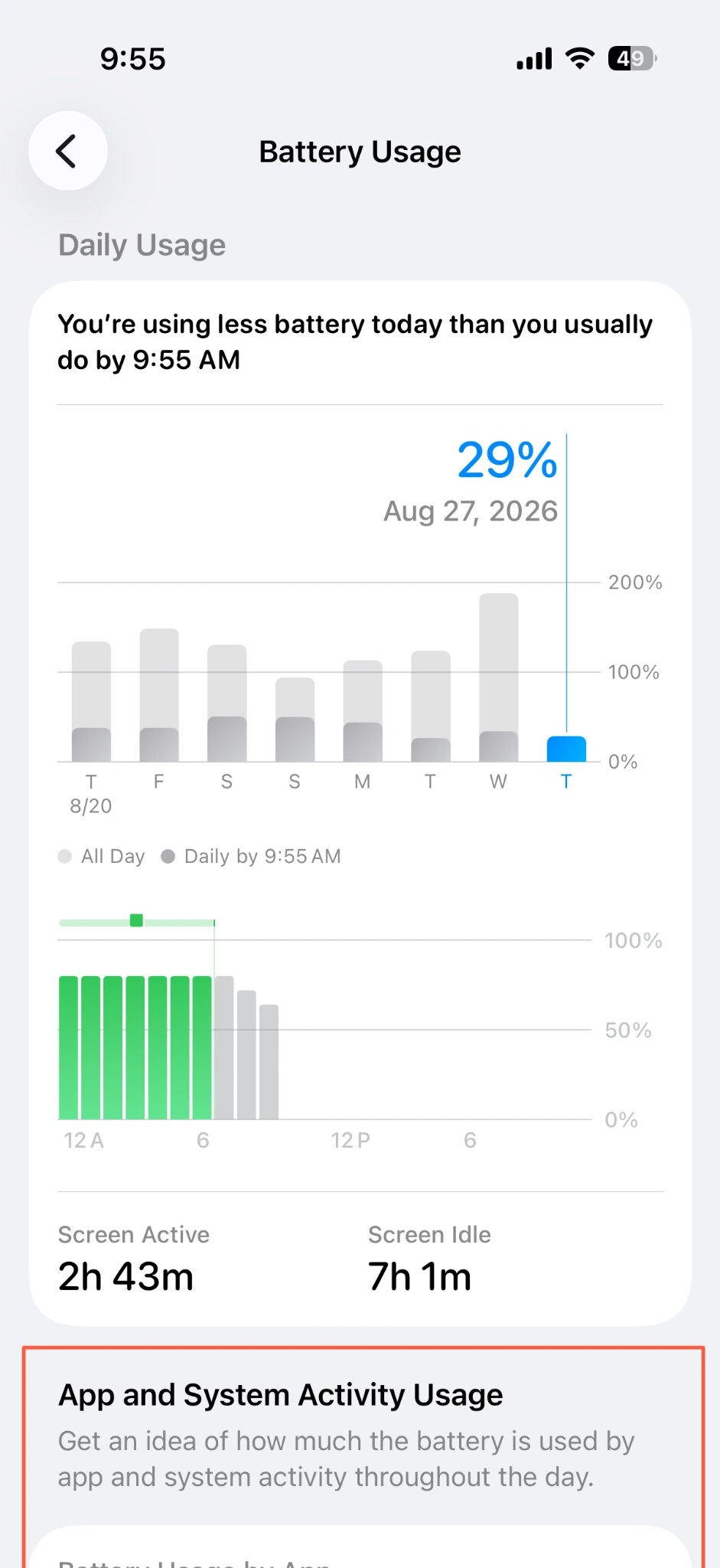
Compare app and system activity by day
Apple’s iPhone battery-usage guide
explains that Daily Usage compares today with your previous pattern, while App
and System Activity Usage shows where the energy went.
- Open
Settings > Battery > View All Battery Usage. - Select the day of the update, then select the current day.
- Check for
Background Activity,No Mobile Coverage and Low Signal, and
Notificationsbelow the leading apps or system activities. - If one app stands out, update it and review its sync, location, playback,
and notification settings. - Change only one likely cause, then compare the next day at roughly the same
time.
Do not repeatedly force-quit every app or turn off Background App Refresh and
notifications across the entire phone as a first step. Use the Battery screen
to identify the app or system activity that is actually high, then reduce only
unnecessary behavior. This preserves useful features and makes the next
comparison meaningful.
If low signal is listed, stabilize the connection
No Mobile Coverage and Low Signal means the iPhone spent energy searching
for Wi-Fi or cellular service or operating with a weak signal. Compare a day
in a strong-signal location and on reliable Wi-Fi. If the status bar also says
No Service, Searching, or SOS, use ToolSolve’s No Service and SOS checklist
before disabling more battery-related features.
On supported devices, 5G Auto can switch to LTE when 5G does not provide a
noticeably better experience. Apple lists this option for iPhone 12 models and
later and iPhone SE (3rd generation). The path is Settings > Cellular >. If that option does not
Cellular Data Options > Voice & Data > 5G Auto
appear, do not assume the Battery screen is broken; model and carrier settings
can differ.
Use Low Power Mode as temporary relief
Low Power Mode reduces background activity and certain visual or network
features when you need more time before charging. Apple’s current Low Power
Mode guide gives model-dependent paths:
- iPhone 15 and later:
Settings > Battery > Power Mode > Low Power Mode - iPhone 14 and earlier:
Settings > Battery > Low Power Mode
Low Power Mode turns off after the iPhone charges to 80 percent or higher. It
can help temporarily, but it does not identify whether the original drain came
from update setup, an app, weak signal, or battery aging.
Adaptive Power is also model-specific. Apple currently lists iPhone 15 Pro,
iPhone 15 Pro Max, iPhone 16 models, iPhone 17 models, and iPhone Air with iOS
26 or later. A missing Adaptive Power option on another compatible iOS 26
iPhone is not an error.
Separate battery aging from an update problem
If background setup, apps, and signal do not explain the drain, check battery
health:
- iPhone 15 and later:
Settings > Battery > Battery Health - iPhone 14 and earlier:
Settings > Battery > Battery Health & Charging
Apple’s iPhone Battery and Performance
guide explains that every rechargeable battery loses capacity and performance
as it chemically ages. Do not use the Maximum Capacity percentage alone as
proof that an update caused the problem. If Battery Health actually shows
Service, follow the onscreen guidance and consider a battery service.
If the iPhone also shuts down unexpectedly more than once, record the Battery
screen and the time of each shutdown. Contact Apple Support instead of simply
waiting for update work to finish.

If you cannot check for the current iOS release
As of August 27, 2026, iOS 26.6.1 is the newest entry on Apple’s iOS 26 update
page. The update offered to a particular iPhone still depends on its model and
installed software. Check Settings > General > Software Update for the
newest compatible release offered to that device.
If Software Update shows Unable to Check for Update, handle that as a
separate network or update-file problem. Follow ToolSolve’s iPhone update-check
guide
before mixing update troubleshooting with battery changes. Back up important
data before updating, and do not erase the iPhone or delete a backup merely to
troubleshoot battery drain.
Summary
For fast battery drain after an iOS update, use this order: check for Ongoing
iOS Update, wait a few days and compare Daily Usage, inspect App and System
Activity Usage, then separate weak signal from battery health. Give genuine
background setup time to finish, but do not wait indefinitely without looking
at the evidence. A same-time comparison across several days is more useful
than a reset-first checklist.