iMessage Waiting for Activation? Check Again Before and After 24 Hours
If your iPhone says Waiting for Activation, do not keep turning iMessage
off and on. First confirm that the cellular line is active, SMS messaging is
available, and the time zone is correct. Turn iMessage off once, restart the
iPhone, turn it back on, and record the time. Apple says carrier verification
can take up to 24 hours. If the phone number is still not selected after that
point, ask the carrier about international SMS before resetting anything.
This guide was checked against Apple’s English-language support pages on
August 27, 2026. Apple’s iOS 26 update history
lists iOS 26.6.1 as the latest release. The iOS 26 compatibility guide includes
iPhone 11 and later plus iPhone SE (2nd generation) and iPhone SE (3rd
generation). iMessage also works on older supported software, but the labels
and screenshot requests below follow US English iOS 26.6.1.
Apple uses Cellular in its US English instructions. The same section may be
called Mobile Service or Mobile Data in another English region. Apple
provides iMessage status on its System Status page,
but the SMS capability and possible activation charge still depend on the
carrier and plan.
First, separate activation from a sending failure
Apple’s activation guide treats
Waiting for Activation, an unsuccessful activation, and an iMessage server
connection error as activation problems. If the phone number already has a
check next to it and only one message fails, troubleshoot delivery instead of
repeating activation steps.
| What you see | Likely scope | First useful check |
|---|---|---|
| Waiting for Activation or a spinning indicator beside the number | Phone-number verification is still running | Record the start time and allow up to 24 hours after one restart |
| The email address is checked but the phone number is not | Phone-number activation has not finished | Confirm the cellular line and SMS capability |
| Green bubbles or email-based sending after adding an eSIM later | iOS 26 late-eSIM setup path | Turn iMessage off and back on once |
| The number is checked but one message shows Not Delivered | Delivery rather than activation | Check the network and recipient address, then retry |
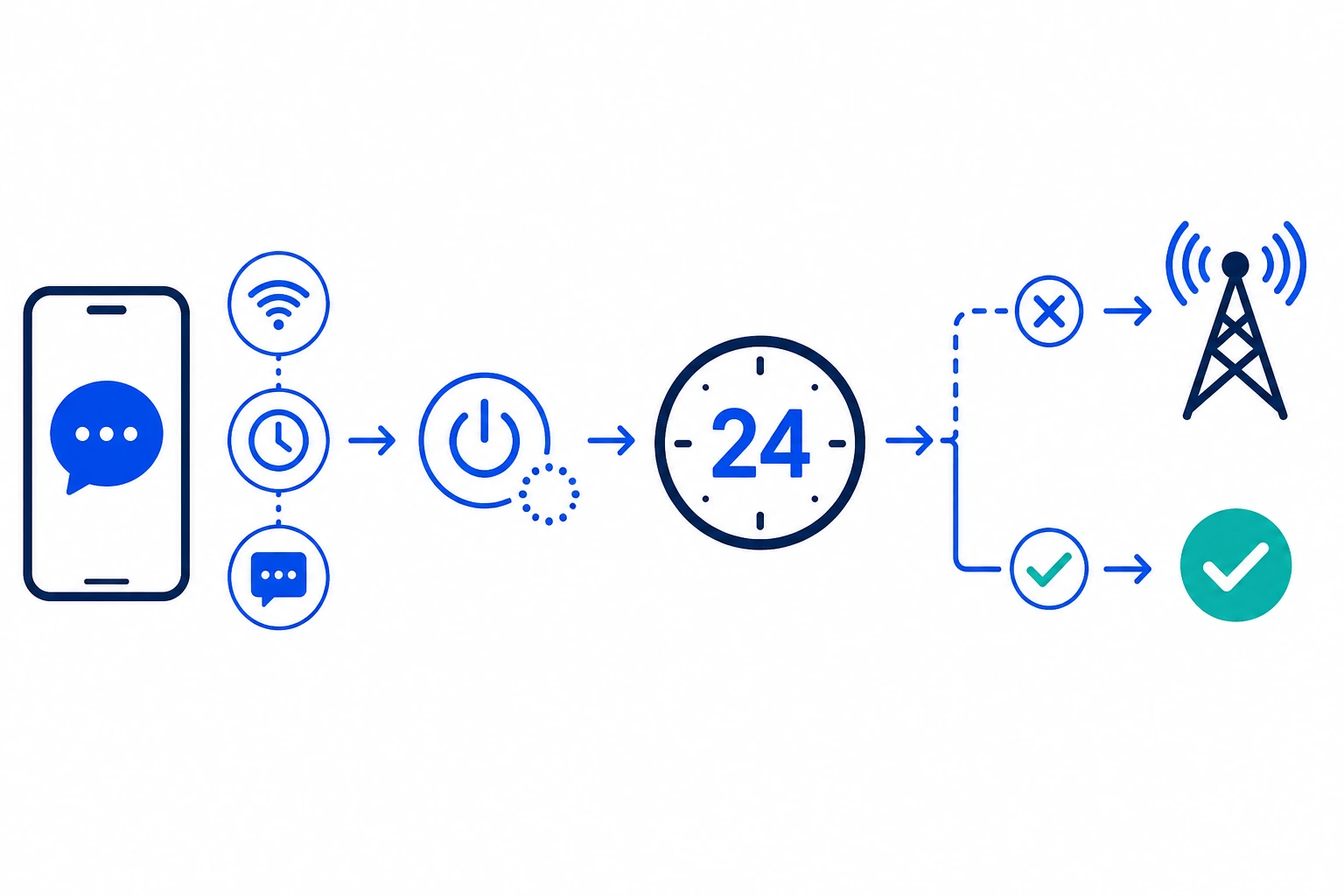
Flowchart separating iMessage checks before 24 hours from carrier verification afterward
Follow the fastest safe sequence once
Apple’s current procedure starts with connectivity, current software, and the
time zone. It then turns off iMessage and FaceTime, restarts the iPhone, and
turns both services back on.
- Check Apple’s System Status page for an iMessage incident. If an incident is
listed, wait for recovery instead of changing account or network settings. - Open a trusted webpage in Safari to confirm that Wi-Fi or cellular data
actually works. - Open
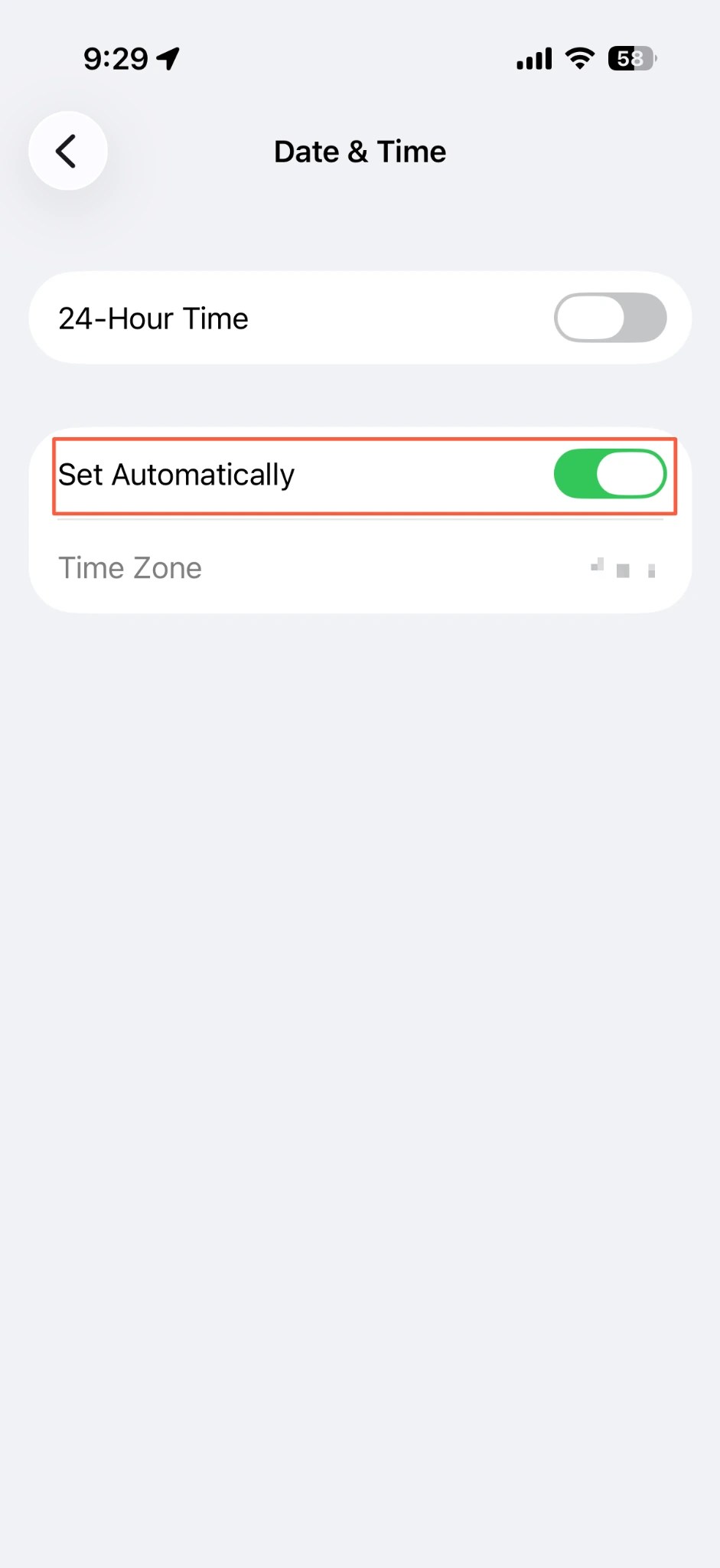
Settings > General > Date & Timeand confirm that the time zone matches
the current location. - Open
Settings > General > Software Updateand check for the newest release
offered to this iPhone model. Back up important data before updating. - Open
Settings > Cellularand confirm that the phone-number line used for
iMessage is turned on. On Dual SIM, make sure you are checking the intended
line. - Open
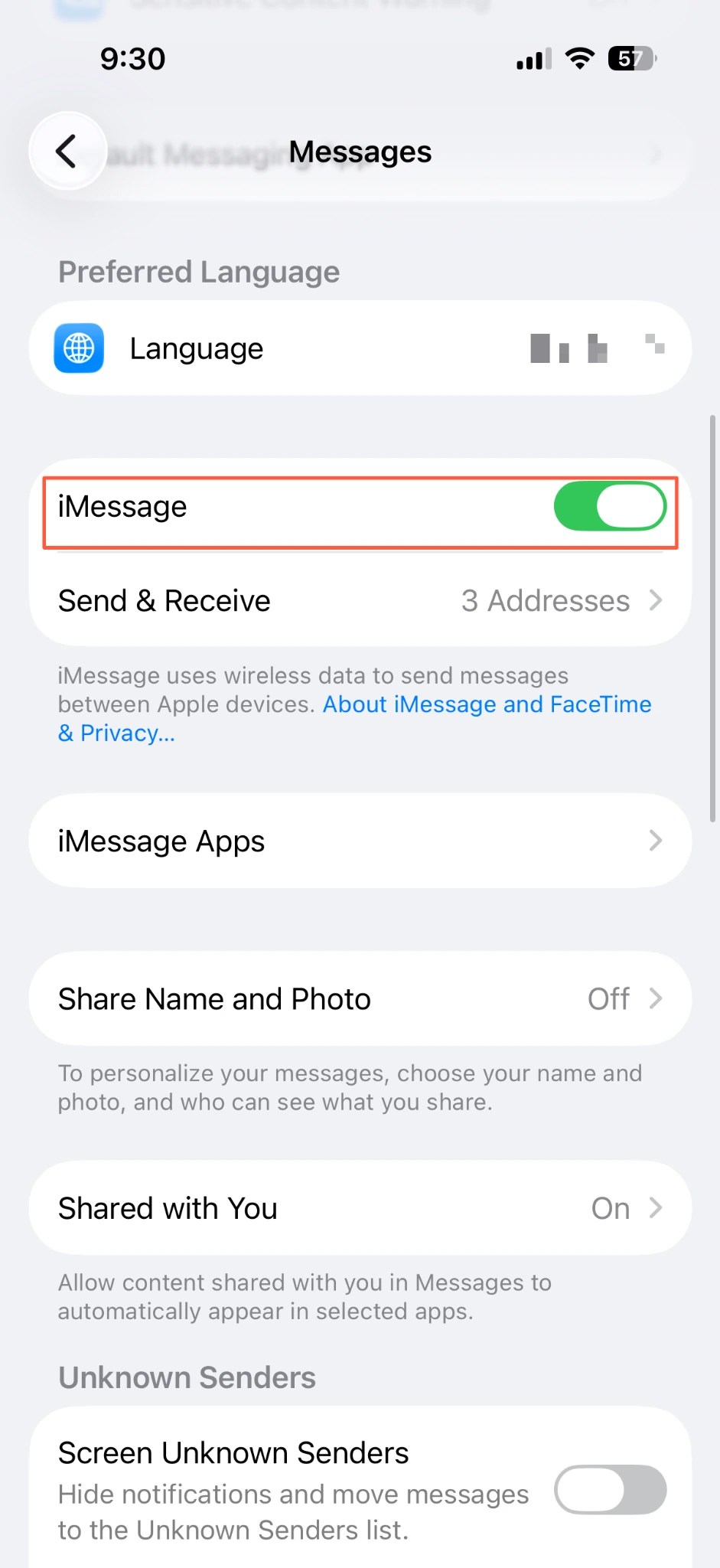
Settings > Apps > Messagesand turn off iMessage. - Open
Settings > Apps > FaceTimeand turn off FaceTime. - Restart the iPhone normally, then turn iMessage and FaceTime back on.
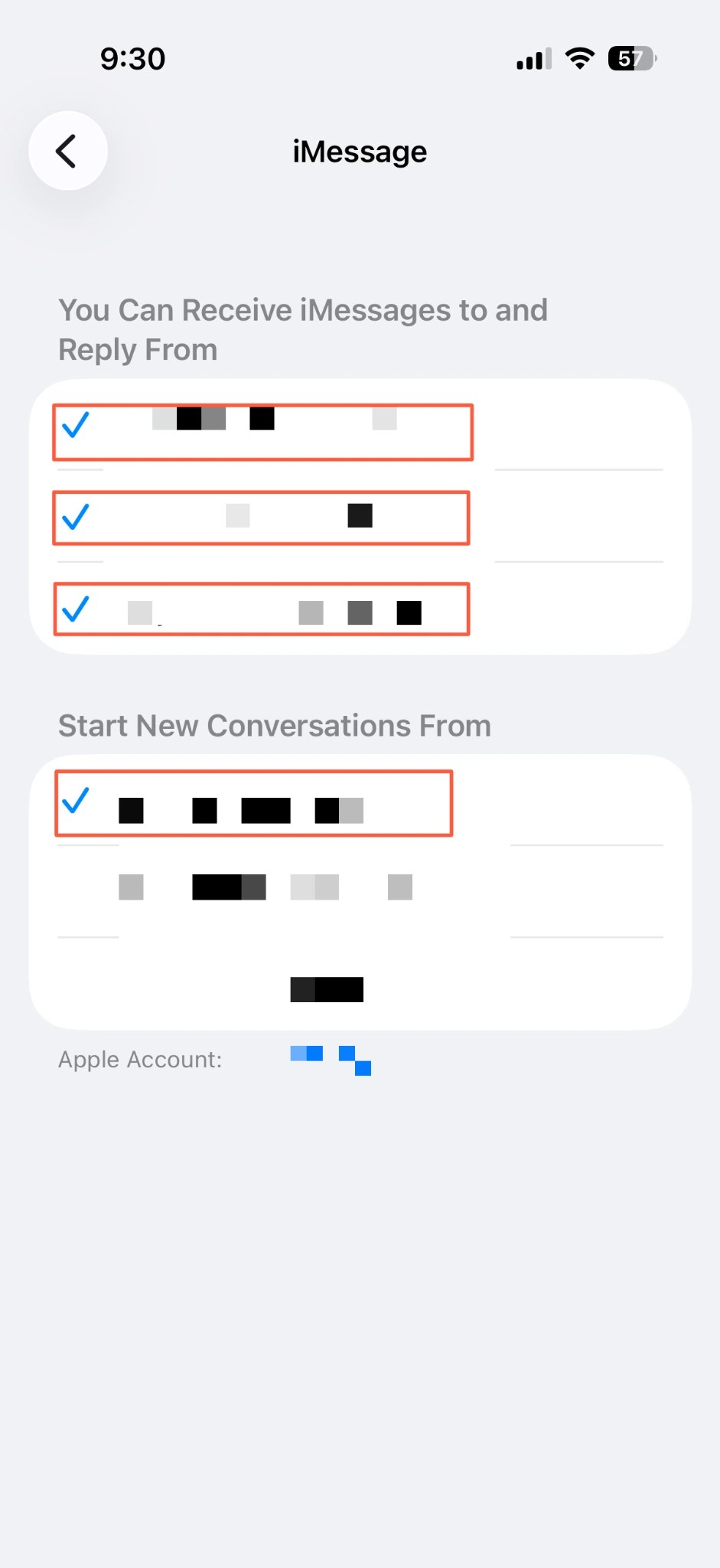
- Open
Settings > Apps > Messages > Send & Receive, check the status beside
the phone number, and record the activation start time.
Activating a phone number requires SMS. Apple warns that a carrier may charge
for the activation message. Read any charge prompt and check the plan’s
international SMS rules before continuing. Repeatedly toggling iMessage can
create additional verification attempts and possible SMS charges without
making the carrier finish faster.
Before 24 hours, leave the spinning number alone
If iMessage is on and a spinning indicator appears beside the phone number in
Send & Receive, the iPhone is attempting verification automatically. Apple
specifically says there is no need to keep turning iMessage off and on.
- Record when iMessage was turned back on.
- Keep the cellular line active and confirm that the plan does not block SMS.
- Watch only for a new carrier outage or Apple service incident.
- Do not reset network settings, delete the eSIM, or sign out of the Apple
Account just to accelerate the waiting state.
If the email address is checked while the phone number is still spinning, the
email can be used with iMessage temporarily. This does not mean phone-number
activation is complete. It can also create a separate conversation thread with
the same contact, so explain the temporary sender address when necessary.
After 24 hours, ask the carrier about international SMS
Apple says it can take up to 24 hours for a carrier to verify a phone number
with Apple. If the phone number still has no check after the earlier steps and
the full waiting period, ask the carrier to confirm:
- The line is active and can send and receive ordinary SMS messages.
- International or verification SMS is not blocked.
- A prepaid, low-cost, or roaming plan has enough balance and no special SMS
restriction. - Number transfer, SIM replacement, or eSIM activation has finished on the
carrier side.
If the iPhone also shows No Service, Searching, SOS, or SOS Only,
stop changing iMessage settings and use the iPhone No Service and SOS troubleshooting guide
to check the line first. If the carrier confirms that the line and SMS service
are working but activation still fails, give Apple Support the exact error,
start time, iOS version, and carrier response.
If the eSIM was added after initial iOS 26 setup
Apple documents a separate iOS 26 case: when a new iPhone is set up without
activating iMessage or an eSIM, adding the eSIM later in Settings might not
activate iMessage automatically. Messages can fail, appear in green bubbles,
or use the email address rather than the phone number.
- Open
Settings > Cellularand confirm that the new eSIM line is on. - Open
Settings > Apps > Messagesand turn iMessage off and back on once. - Open Send & Receive and check whether the new phone number appears with a
check. - If a trusted iPhone contact agrees, send one non-sensitive message and check
whether it is delivered as a blue iMessage.
Do not delete the eSIM as a shortcut. Restoring it can require a new QR code,
carrier app process, or carrier assistance. Delete it only after the carrier or
Apple Support identifies the exact line and gives you a recovery path.
Collect the minimum evidence for support
These details help separate an account, carrier, and device problem:
- The exact error and the time and time zone when it first appeared
- The iPhone model and iOS version
- Whether the state is the same on Wi-Fi and cellular data
- Whether the email address, phone number, or both have a check in Send & Receive
- Whether the carrier confirmed ordinary and international SMS availability
- Whether the eSIM was enabled during initial setup or added later
Do not post the phone number, Apple Account email, eSIM identifiers, or support
case number in a public forum. Redact screenshots and provide identifiers only
through an official private support channel.
Frequently asked questions
Do I really need to wait 24 hours?
Apple says carrier verification can take up to 24 hours. After checking the
network, time zone, current iOS release, and SMS capability, complete the
restart sequence once and leave a spinning phone number alone. If the check is
still missing after 24 hours, contact the carrier about international SMS and
line provisioning instead of repeating the toggle.
Does a green bubble always mean activation failed?
No. Apple’s message troubleshooting guide
explains that green bubbles can be RCS, SMS, or MMS. A new iPhone with an
unchecked phone number may have an activation problem, but the recipient’s
device, temporary iMessage availability, and message settings can also explain
the color. Use the phone-number check in Send & Receive as the stronger
activation signal.
Can activation SMS cost money on an unlimited texting plan?
It can. Apple says the carrier may charge for the activation SMS. International
SMS rules and exclusions vary by carrier and plan, so check the current terms
instead of assuming that an unlimited domestic-text allowance covers it.
Summary
For an iPhone stuck on Waiting for Activation, use this order: verify the
network, time zone, current iOS release, cellular line, and SMS capability;
restart iMessage and FaceTime once; wait up to 24 hours without repeated
toggles; then ask the carrier about international SMS and line provisioning.
The next useful action is to open Send & Receive and record the phone-number
status and activation start time.