AirDrop Not Working on iPhone? Fix Missing Devices and Waiting
If AirDrop is not working on your iPhone, start on the receiving device. Open
Control Center, set AirDrop to Everyone for 10 Minutes, turn on Wi-Fi and
Bluetooth on both devices, and disconnect Personal Hotspot. Then try sending
one non-sensitive photo while the devices are close together. This quick test
separates a receiving or contact problem from a transfer failure.
This guide was checked against Apple’s English-language support pages on August
26, 2026. Apple’s security releases page listed iOS 26.6.1 as the current iOS
release. Apple’s iOS 26 compatibility guide includes iPhone 11 and later plus
iPhone SE (2nd generation) and iPhone SE (3rd generation). AirDrop also works on
older software, but the labels and AirDrop code behavior in this guide are based
on iOS 26.6.1.
Apple added AirDrop codes for unknown contacts in iOS 26.2. If either device is
on an earlier compatible release, the code step described below might not
appear. Update only to a version offered for that device, and back up important
data before installing a system update.
Choose the right starting point for the symptom
AirDrop does not require both iPhones to join the same Wi-Fi network. Apple’s
AirDrop security guide
explains that discovery and the initial connection use Bluetooth Low Energy and
peer-to-peer Wi-Fi. Wi-Fi and Bluetooth must still be turned on on both devices.
| What you see | Check first | Next test |
|---|---|---|
| The other person never appears | Receiving setting, distance, Wi-Fi, and Bluetooth | Temporarily use Everyone for 10 Minutes |
| One person disappears under Contacts Only | Their contact card and Apple Account details | Compare with Everyone for 10 Minutes before editing contacts |
| You select the person but see Waiting | Accept prompt, Personal Hotspot, and VPN | Restart both devices, then send one photo |
| The transfer begins and then fails | Distance, software version, and number of files | Keep devices close and send one small item |
| AirDrop is missing or forced off on a work device | Device-management restrictions | Ask the administrator instead of removing the profile |
If the other person does not appear, change the receiver first
Apple’s current
AirDrop instructions say that both
people should have Wi-Fi and Bluetooth on and should disconnect Personal Hotspot
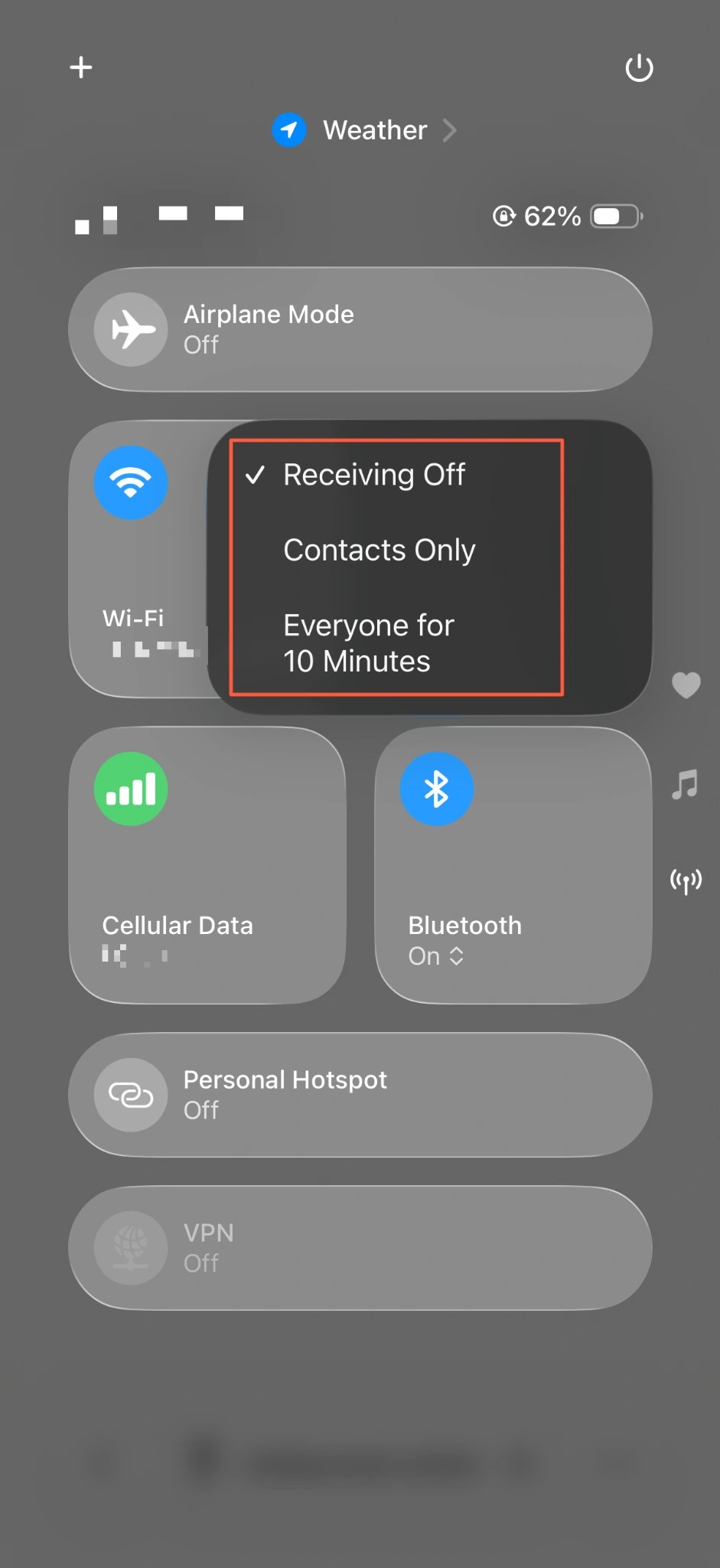
if it is active on either device. Follow this order on the receiving iPhone:
- Turn on Wi-Fi and Bluetooth on both devices. They do not need to join the
same Wi-Fi network. - Disconnect Personal Hotspot on either device during the test.
- Keep the devices within 30 feet (10 meters), preferably next to each other.
- Open Control Center on the receiving iPhone and touch and hold the
connectivity controls. - Tap AirDrop > Everyone for 10 Minutes.
- On the sending iPhone, select one photo and open Share > AirDrop again.
The setting does not stay open indefinitely. On iOS 16.2 and later,
Everyone for 10 Minutes changes after ten minutes. A device signed in to an
Apple Account returns to Contacts Only; a device that is not signed in
returns to Receiving Off. If the recipient appeared earlier and has now
vanished, check this automatic change before resetting anything.
If Contacts Only fails, check the contact card
If the recipient appears under Everyone for 10 Minutes but disappears under
Contacts Only, focus on identity matching rather than the wireless radios.
Apple’s
iPhone User Guide
says the sender must be in the recipient’s contacts, and the recipient’s contact
card for that sender must include the email address or phone number connected to
the sender’s Apple Account.
Saving only a name is not enough. Compare the details carefully:
- On the receiving iPhone, open the sender’s card in Contacts.
- Confirm that its email address or phone number is actually connected to the
sender’s Apple Account. - Do not post or message a full email address or phone number merely to diagnose
AirDrop. - After correcting the card, return to Contacts Only and send the same
single photo again.
If both devices use the same Apple Account, the item can be accepted and saved
automatically. In that situation, not seeing the same Accept prompt used for
another person is not necessarily a failure.
If the recipient is not in Contacts, use the AirDrop code
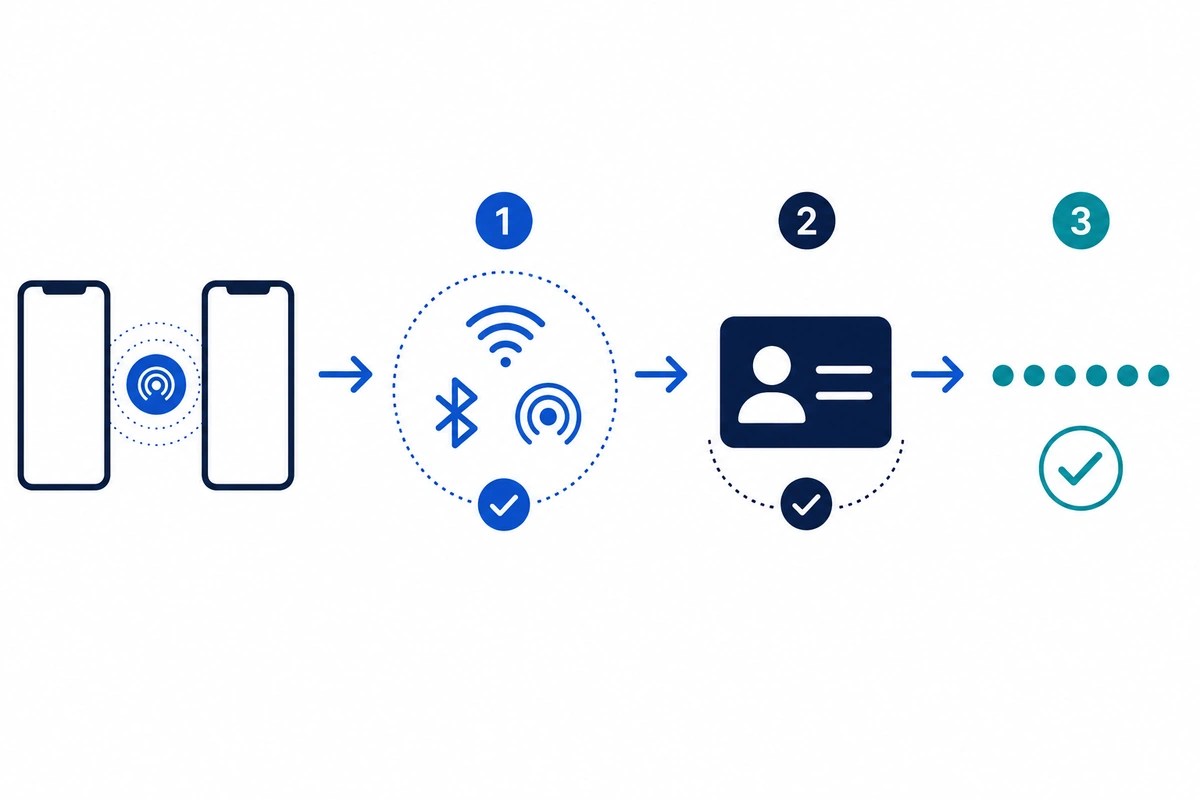
On iOS 26.2 or later, a person who is not in the recipient’s contacts must use
an AirDrop code. The recipient chooses to continue, taps Get AirDrop Code
when prompted, and reads the code directly to the sender. The sender enters that
code on their own device to complete the transfer.
After verification, the person remains in the recipient’s Other Known list
for 30 days, so another code is not required for every transfer. To end that
relationship sooner, open Contacts, find the person under Other Known, and
choose Forget This Person. Never leave the real AirDrop code visible in a
published screenshot.
If AirDrop stays on Waiting or the transfer fails
If the recipient appears but the transfer never finishes, simplify the test
before changing several settings at once:
- Keep both devices nearby and let the recipient watch for the AirDrop
notification. - Disconnect Personal Hotspot. If a VPN is active, check whether its
configuration blocks local networking. Do not remove a work or school VPN
without administrator approval. - Restart both devices. Apple’s User Guide includes a restart among its first
steps when AirDrop does not work. - Send one non-sensitive photo instead of a large batch of photos or videos.
- Open Settings > General > Software Update on each device and check for a
compatible update.
If one photo succeeds but a large selection fails, reduce the number of items
per transfer. Apple describes AirDrop as best suited to a small selection of
files and points users with many files toward storage, server, or cloud transfer
options.
Do not begin with Reset Network Settings or an iPhone erase. Apple’s first
AirDrop checks are Wi-Fi, Bluetooth, receiving scope, Personal Hotspot, distance,
and a restart. Exhaust those reversible checks before considering a change that
can remove saved network or VPN settings.
If it still does not work, isolate who should investigate
- If one iPhone fails with every nearby Apple device, record its iOS version,
receiving setting, management-profile status, and the time of the failure for
Apple Support. - If only one person fails under Contacts Only, compare the Apple Account
email address or phone number stored in both contact cards. - If AirDrop is missing or forced off on a company or school device, ask the
administrator. Device management can restrict AirDrop. - If an update is needed, iOS 26.6.1 was the current iOS release on August 26,
2026. Install only the compatible release offered to that device.
Frequently asked questions
Do both iPhones need to be on the same Wi-Fi network?
No. AirDrop uses peer-to-peer Wi-Fi and Bluetooth, so the devices do not need to
join the same router. Wi-Fi and Bluetooth still need to be turned on on both
devices.
Why does Everyone switch back to Contacts Only?
The option is Everyone for 10 Minutes on iOS 16.2 and later. After ten
minutes, an iPhone signed in to an Apple Account returns to Contacts Only;
an unsigned-in device returns to Receiving Off.
Why is there no Accept button on my other iPhone?
When both devices are signed in to the same Apple Account, AirDrop items can be
accepted and saved automatically. If the devices use different accounts, check
the receiving scope and whether an AirDrop code is required.
Summary
The fastest AirDrop troubleshooting order is turn on Wi-Fi and Bluetooth >
disconnect Personal Hotspot > set the receiver to Everyone for 10 Minutes >
send one photo. If that works, repair the Contacts Only identity match or
use the non-contact AirDrop code. If it still fails, restart both devices and
check the VPN, software version, management restrictions, and number of files.
If the goal is to share the iPhone’s internet connection rather than transfer a
file, follow the separate
iPhone Personal Hotspot troubleshooting guide.