iPhone Won’t Connect to Wi-Fi? Fix No Internet and Password Errors
If your iPhone will not connect to Wi-Fi, do not reset all network settings
first. The same message can point to a saved password, a sign-in page, a VPN,
the router, or the internet service itself. Two quick comparisons usually reveal
which side needs attention:
- Try the same Wi-Fi network on another device.
- Try a different trusted Wi-Fi network on the iPhone.
Those results keep you from erasing saved networks when the real problem is the
router or internet connection.
This guide was checked against Apple’s English-language support pages on August
25, 2026. Apple’s security releases page listed iOS 26.6.1 as the current iOS
release, and Apple’s compatibility list included iPhone 11 and later plus iPhone
SE (2nd generation and later). Labels can differ on older releases. Wi-Fi itself
does not depend on your cellular plan, but public-network sign-in pages, router
settings, and ISP outages vary by location and provider.
Diagnose the problem in one minute
| What you observe | Most likely area | Start here |
|---|---|---|
| The network name does not appear | Router range, Wi-Fi broadcast, or iPhone Wi-Fi | Move closer and refresh Wi-Fi |
| You see Incorrect Password or Unable to Join | Saved password or router security | Re-enter the password, then forget only that network |
| A blue checkmark appears but pages do not load | Sign-in page, VPN, router, or ISP | Test another device on the same network |
| Only this iPhone fails on several networks | iPhone software, profile, or hardware | Restart, update, then reset settings last |
| Every device fails on one network | Router or ISP | Restart the router and check the ISP |
Follow the fastest safe order
1. Confirm Wi-Fi is actually connected
Open Settings > Wi-Fi. Make sure Wi-Fi is on and a blue checkmark appears
beside the intended network. Turn Airplane Mode off. If the Wi-Fi control is
dimmed, restart the iPhone before changing anything else.
The Wi-Fi icon alone is not proof that the internet works. It only confirms the
link between the iPhone and the wireless network.
2. Compare one network and one device
Use these two tests before deleting settings:
- If another device also fails on the same Wi-Fi, focus on the router or ISP.
- If the iPhone works on a different trusted Wi-Fi, focus on the original router.
- If only the iPhone fails on several known-good networks, focus on the iPhone.
Avoid using an unknown public network for this comparison. A trusted second
network gives a clearer result and reduces privacy risk.
3. Restart the smallest affected area
If only the iPhone is affected, restart the iPhone. If every device is affected,
restart the router and modem according to the manufacturer’s instructions. Wait
until their status lights return to normal before reconnecting.
Do not repeatedly factory-reset the router. That can erase ISP or administrator
settings and is not required for this diagnosis.
If the password is wrong or the iPhone cannot join
Wi-Fi passwords are case-sensitive. Check capitalization and similar-looking
characters. If the router password changed, the iPhone may still be trying an
older saved credential.
For a network you own or are authorized to manage:
- Open Settings > Wi-Fi.
- Tap the More Info button beside the network.
- Tap Forget This Network.
- Select the network again and enter the current password.
Forgetting a network also turns off Auto-Join for that network. Apple notes that
a forgotten network can also be forgotten on other Apple devices signed in to
the same Apple Account with iCloud Keychain enabled. Do not forget a school,
work, hotel, or managed network unless you know how to recover its credentials
and configuration.
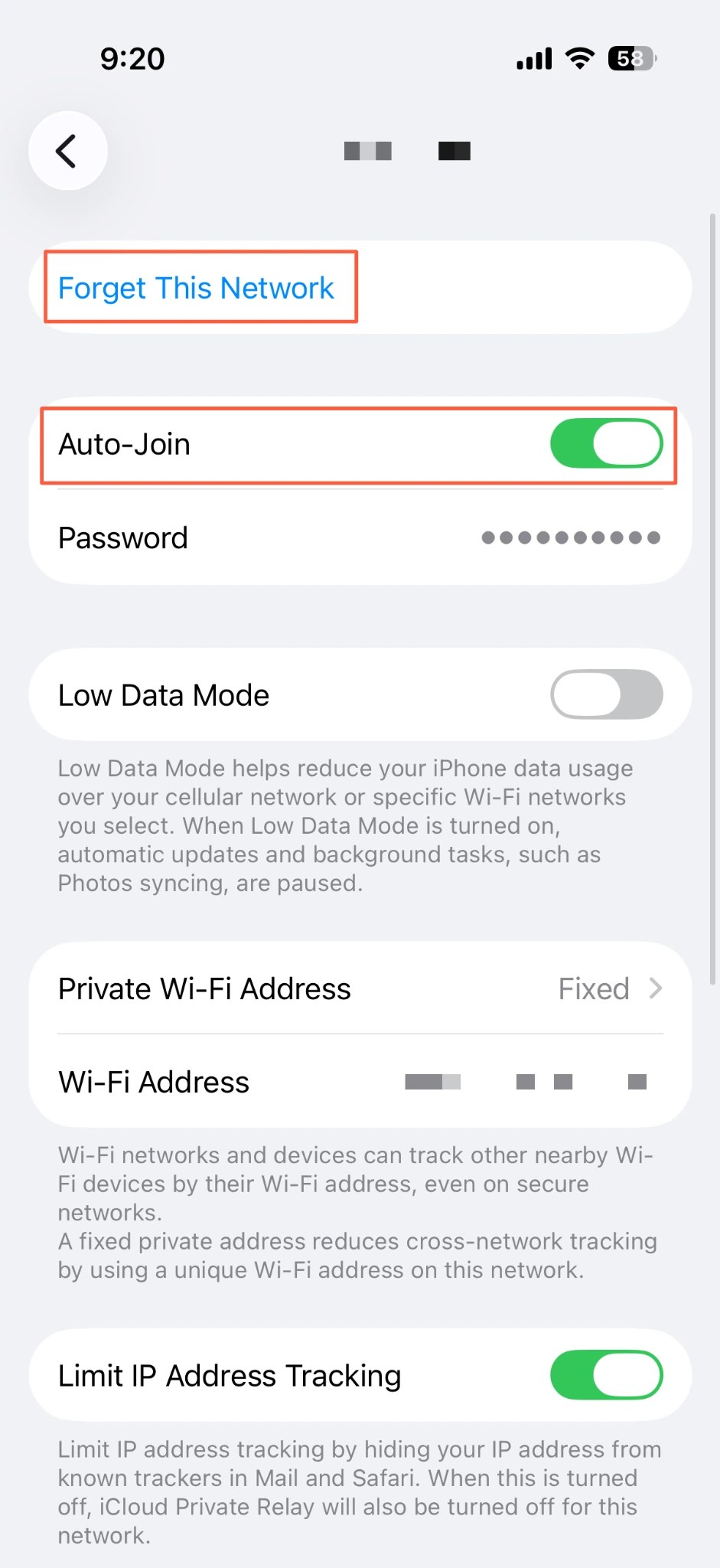
If Forget This Network is unavailable, the network may be managed by a
configuration profile or mobile device management. Check Settings > General >
VPN & Device Management and contact the administrator instead of removing a
profile you do not own.
If a blue checkmark appears but the internet does not work
First, open a new web page. Public networks at hotels, airports, cafes, and
schools may require a sign-in page, terms acceptance, room number, or email
address before internet access begins. If the login page does not appear, forget
and rejoin that public network only if you can safely recover access.
Next, check whether a VPN or security app is active. Apple recommends
temporarily uninstalling VPN or security software rather than merely disabling
it, then restarting and testing again. Do this only if you understand how to
restore the app and its configuration. On a managed device, contact the
administrator first.
Also turn off Settings > Cellular > Wi-Fi Assist while diagnosing. Wi-Fi
Assist can switch to cellular data when Wi-Fi performs poorly, which makes the
result harder to interpret. Turn it back on afterward if you normally use it.
If every device shows the same failure, check the ISP’s official status page or
contact the provider. Resetting the iPhone will not repair an upstream outage.
If it fails only on your home Wi-Fi
Move close to the router and test again. If the router has separate 2.4 GHz, 5
GHz, or 6 GHz network names, try another supported band. A result that changes
by room or band points toward range, interference, band steering, or router
configuration rather than a saved iPhone password.

Use this order to identify the failing segment:
- iPhone to router: Is the network visible, and does the blue checkmark appear?
- Router to internet: Do other devices on the same Wi-Fi reach the internet?
- One network versus several: Does the iPhone work on another trusted Wi-Fi?
If you can administer the router, install its current firmware and use a modern
security mode. Apple recommends WPA3 Personal for newer equipment or
WPA2/WPA3 Transitional for compatibility. Avoid WEP, TKIP, and open security.
Changing security, band, or channel settings can disconnect every device, so
record the current configuration and follow the router manufacturer’s guidance.
Update iOS before the final reset
Open Settings > General > Software Update and install an available update
after backing up important data. Use Apple’s current compatibility and security
release pages to confirm support for the specific model. This article does not
claim that every Wi-Fi problem is fixed by updating; the update is one controlled
step before erasing network configuration.
Reset network settings only after the comparisons
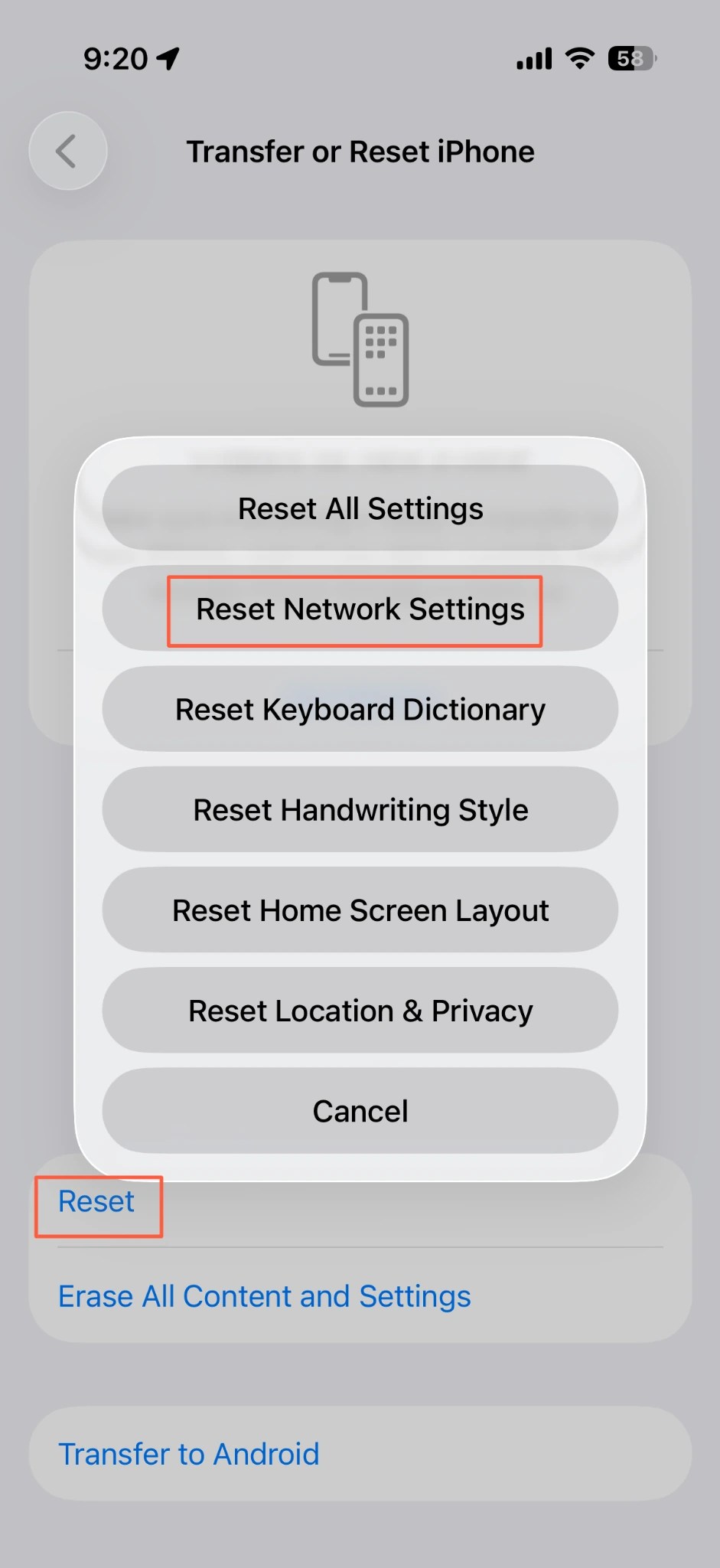
Use Settings > General > Transfer or Reset iPhone > Reset > Reset Network
Settings only after the earlier steps fail.
Apple says this removes saved network settings and resets Wi-Fi networks and
passwords, cellular settings, and VPN and APN settings that were not installed
by a configuration profile or mobile device management. Prepare the Wi-Fi
passwords and any administrator-provided settings you will need afterward.
This is not the same as Erase All Content and Settings. Read the final button
carefully and do not choose the erase option.
Decide who should fix it
- Contact the network administrator if a managed profile controls the network,
the sign-in policy is unclear, or the problem occurs only at work or school. - Contact the router manufacturer if several devices fail after a firmware or
security-setting change. - Contact the ISP if every device connects to Wi-Fi but cannot reach the
internet. - Contact Apple Support if the iPhone cannot detect or join several known-good
networks after a restart, update, and carefully planned network reset.
Frequently asked questions
Why is the Wi-Fi icon visible when the internet does not work?
The icon confirms a wireless connection between the iPhone and the network. The
router may still be offline, or a public network may still require sign-in. Test
another device on the same Wi-Fi before changing iPhone settings.
If other devices work, does that prove the router is fine?
No. The iPhone may have an old password, VPN, or managed profile, while the
router may have a device-specific block or incompatible security setting. Test
the iPhone on a second trusted network to distinguish those cases.
Should I reset network settings first?
No. It can remove saved Wi-Fi passwords and reset cellular, VPN, and APN
settings. Compare devices and networks, restart, and check the password and
router before using the reset as the final step.
Summary
The fastest way to solve an iPhone Wi-Fi connection problem is to compare the
same Wi-Fi on another device, then the iPhone on another trusted Wi-Fi.
That identifies whether to work on the phone, the router, a captive portal, or
the ISP. Check the password, sign-in page, VPN, and router next, and reserve
Reset Network Settings for last.
If Wi-Fi works and you are actually trying to share the iPhone’s cellular
connection, continue with iPhone Personal Hotspot Not Working? Fix Missing or
Offline Connections.