iPhone Personal Hotspot Not Working? Fix Missing or Offline Connections
If Personal Hotspot is not working on your iPhone, do not reset network
settings first. Turn off Wi-Fi on the iPhone and confirm that Safari can load
a new page over cellular data. Then open Settings > Personal Hotspot, turn
on Allow Others to Join, and toggle Wi-Fi off and back on from the device
that needs to connect. If the iPhone itself has no cellular internet, fix the
line or carrier problem before changing hotspot settings.
First, separate a hotspot problem from a cellular problem
Personal Hotspot shares the iPhone’s cellular data connection. It does not
take the Wi-Fi network connected to the iPhone and rebroadcast that network.
Apple’s Personal Hotspot connection guide
explains that it creates a temporary network from the iPhone’s cellular data.
- Temporarily turn off Wi-Fi on the iPhone.
- Open Settings > Cellular and confirm that Cellular Data is on.
- If you use Dual SIM, confirm that the intended line is selected for
cellular data. - Open Safari and load a new webpage that is not already cached.
If Safari cannot load the page, repeatedly toggling Personal Hotspot will not
restore the underlying connection. Check line activation, data restrictions,
carrier status, and cellular signal first. If the status bar shows No
Service, Searching, SOS, or SOS Only, use ToolSolve’s
iPhone No Service or SOS troubleshooting guide
before returning to the hotspot.
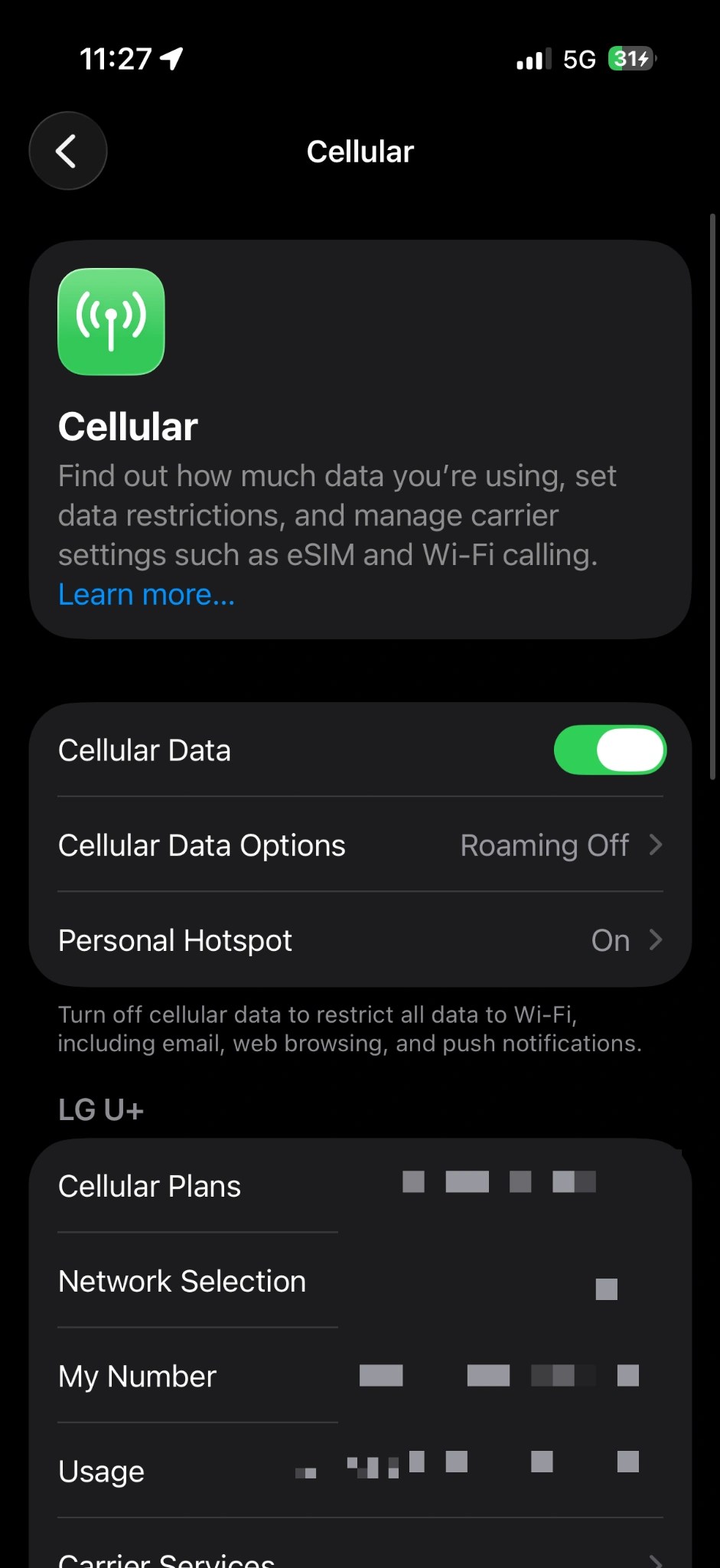
Apple uses Cellular in its US English instructions. Depending on the
English region selected on the iPhone, the same area may be labeled Mobile
Data or Mobile Service.
Match the symptom to the first useful check

| What you see | Check first | Why not reset yet |
|---|---|---|
| Personal Hotspot is missing, dimmed, or will not turn on | Carrier and plan support | An iOS reset cannot remove a carrier restriction |
| The iPhone does not appear in another device’s Wi-Fi list | Allow Others to Join, the open settings screen, and Maximize Compatibility | The password and cellular line may be fine |
| The other device reports a password error | The current Wi-Fi Password and iPhone name | It may be retrying an older saved password |
| The device connects but has no internet | Cellular data on the iPhone and the selected data line | A Wi-Fi link does not prove that the iPhone has internet access |
This split keeps the checks reversible and avoids erasing saved network
details before you know which connection is failing.
If Personal Hotspot is missing or will not turn on
Apple’s current
Personal Hotspot troubleshooting page
says to confirm that the wireless carrier enabled the feature and that the
wireless plan supports it when Personal Hotspot cannot be found or enabled.
If Settings > Cellular does not show Set Up Personal Hotspot, contact
the carrier with these facts:
- Whether cellular data works directly on the iPhone
- The affected line and plan
- Whether the menu is missing, dimmed, or produces an error
- Whether the iPhone is managed by an employer or school
Personal Hotspot is not available with every carrier or plan. Extra fees,
tethering limits, and the number of devices that can connect may also vary by
carrier, plan, country, and iPhone model. This guide does not assume that a
feature included by one carrier is included by another.
As of August 15, 2026, Apple’s
iOS 26 update page lists iOS 26.6 as
the latest iOS 26 entry. This guide checks menu names against iOS 26.6. Apple’s
iOS 26 compatibility list
includes iPhone 11 and later supported models as well as iPhone SE (2nd and
3rd generation). Menu wording can differ on an older iOS release or in another
English region.
If the iPhone is missing from the Wi-Fi list
On the iPhone, open Settings > Personal Hotspot and turn on Allow Others
to Join. Keep that screen open until the other device connects. On the
computer, tablet, or phone that needs the connection, turn Wi-Fi off and back
on, then select the network with the same name as the iPhone. Restart both
devices once if the network still does not appear.
On iPhone 12 and later, turn on Maximize Compatibility from the Personal
Hotspot screen and search again. Apple warns that this option can reduce
internet performance and Wi-Fi security for connected devices, so use it when
an older laptop or another device cannot see or join the normal hotspot, then
turn it off when it is not needed.
The option may be spelled Maximise Compatibility in some English regions.
That spelling difference does not indicate a different feature.

If the password is rejected or the connection keeps dropping
Forget the saved hotspot network on the connecting device, then join again
with the current password shown under Settings > Personal Hotspot. If
the iPhone name changed, select the new name in the Wi-Fi list rather than an
older saved network.
Apple’s connection guide specifies that a Personal Hotspot password must be at
least eight characters and should use ASCII characters: English uppercase and
lowercase letters, digits, and supported punctuation. Replace emoji, accented
letters, or non-Latin characters if another device repeatedly rejects the
password.
A disconnection after the hotspot sits unused is not always a fault. Apple’s
iPhone User Guide notes that devices can disconnect when the hotspot is not in
use to save battery. If it drops during active use, restart both devices,
install available software updates, and forget and rejoin the network before
resetting the iPhone.
If the device connects but has no internet
A connected Wi-Fi icon only confirms that the second device reached the
iPhone. It does not confirm that the iPhone can supply internet access.
- Temporarily disconnect a VPN on the connecting device if it blocks local
networking. - With Wi-Fi off on the iPhone, confirm that Safari can load a new page over
cellular data. - On a Dual SIM iPhone, check Settings > Cellular > Cellular Data and
confirm the selected line. - Restart the iPhone and the connected device.
- Open Settings > General > Software Update and install an update that is
offered for the iPhone.
If cellular data works on the iPhone but every tethered device remains
offline, ask the carrier to confirm hotspot provisioning and any plan-specific
tethering restriction. Do not copy random APN values from a forum or delete a
carrier profile without an official recovery path. Those changes can break
cellular data without solving a plan restriction.
Reset Network Settings only after the safer checks
Use this path only after the carrier, cellular line, hotspot switch, Wi-Fi
visibility, and password have been checked:
Settings > General > Transfer or Reset iPhone > Reset > Reset Network
Settings
This is different from Erase All Content and Settings, but Apple states
that it resets saved Wi-Fi networks and passwords, cellular settings, VPN
settings, and APN settings. Record any business or school VPN details and make
sure you can recover important Wi-Fi passwords before continuing. Confirm the
menu label carefully so that you do not select a different reset option.
After the reset, first confirm that the iPhone reconnects to cellular data.
Then turn Personal Hotspot back on and test with one device before adding more
devices.
What to collect before contacting support
If the problem remains, give the carrier or Apple Support a short, specific
record instead of repeating every reset:
- iPhone model and iOS version
- Country, carrier, and confirmation that the plan supports Personal Hotspot
- Whether cellular data works directly on the iPhone
- The exact symptom: missing menu, invisible network, password error, or no
internet after connecting - The connecting device and its operating system
- Results after restarting both devices, checking updates, and trying Maximize
Compatibility
The safest diagnostic order is cellular data > carrier and plan > hotspot
visibility > password > internet access > network reset. It separates a
carrier problem from an iPhone setting problem and preserves saved network
details until a reset is genuinely justified.