GitHub Actions Scheduled Workflow Not Running? 7 Checks to Try
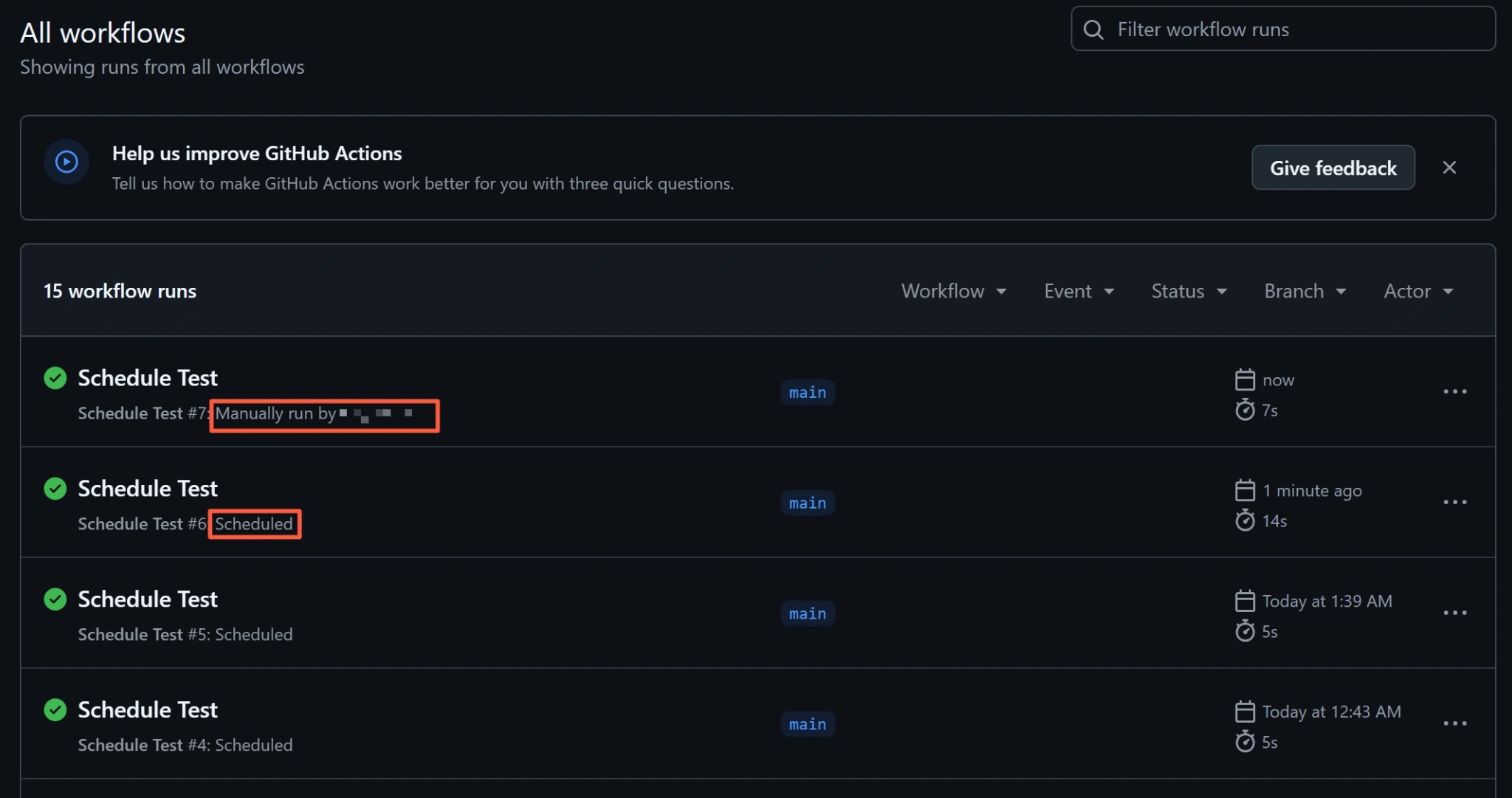
If a manual run works but the scheduled run never appears, check the
scheduled time, default branch, and workflow state before debugging the
job itself. Scheduled runs can also be delayed or dropped during periods of
high load, especially at the start of an hour, so moving the cron expression
to an off-minute is a useful first step.
First, separate a missing run from a delayed or failed run
Open the repository’s Actions tab, select the workflow, and inspect the
runs around the expected time. If a run exists but started late, investigate
scheduler or queue delay. If no run exists, begin with the cron expression,
default branch, and workflow state. If a run was created and a job is red,
the schedule trigger worked; diagnose the failed step instead.
| What you see | Check first | Likely meaning |
|---|---|---|
| No run was created | Timezone, default branch, workflow state | The trigger probably did not fire |
| A run started later than expected | Start-of-hour timing and GitHub Status | The run was scheduled but delayed |
Only workflow_dispatch runs appear |
Schedule registration and default branch | The job itself is probably healthy |
| A run exists but the job failed | Logs from the failed step | The schedule trigger worked |
The page shows Enable workflow |
Manual or automatic disabling | The workflow must be enabled |
| Scheduled runs stopped after an account change | The schedule’s last actor |
Check account state for Enterprise Managed Users |
Follow this troubleshooting order
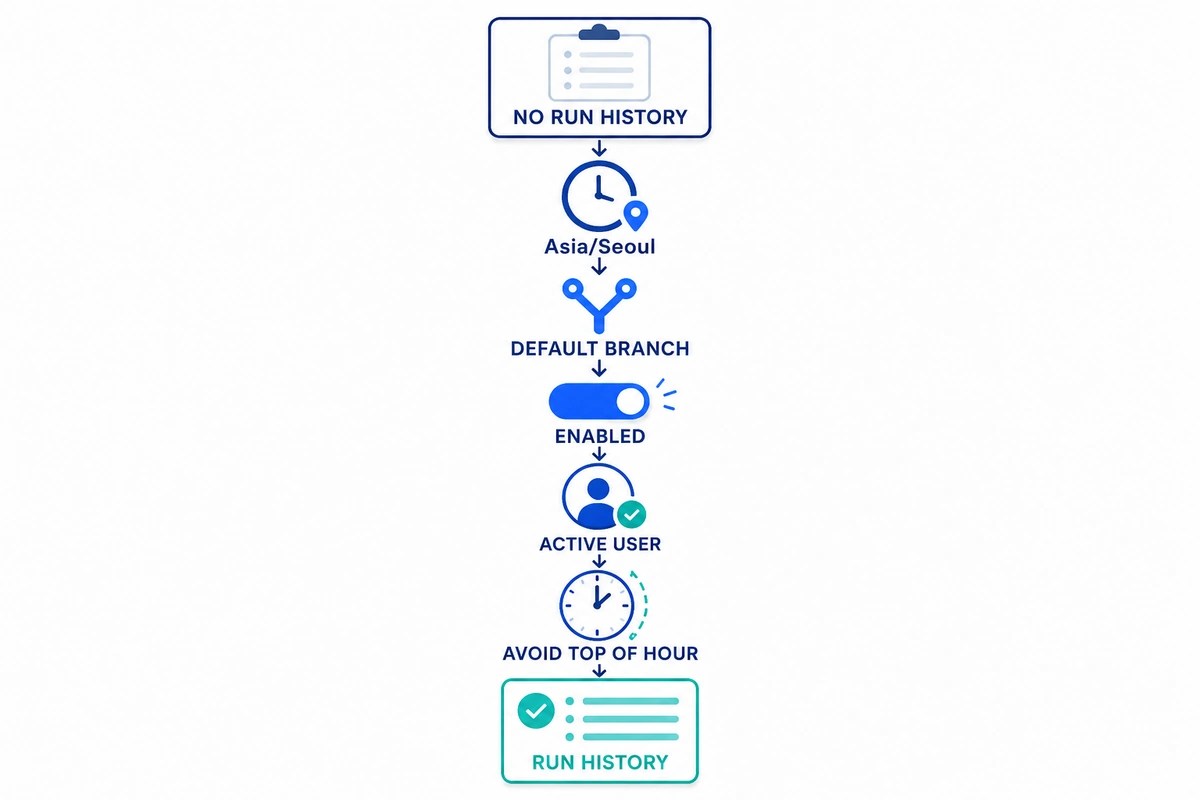
The steps below do not require deleting code or changing secrets. Check one
condition at a time, then record what happens at the next scheduled time or
during a manual run.
- Confirm that the cron expression uses the intended timezone and weekday.
- Confirm that the workflow file exists on the repository’s default branch.
- Check that the workflow is enabled in the Actions tab.
- For an Enterprise Managed Users organization, check whether the last
scheduleactoris still active. - Move the schedule away from minute
0and observe the next run. - Add
workflow_dispatchto separate job failures from trigger failures. - If a missed run is unacceptable, monitor the workflow from outside the
scheduled workflow and provide a separately reviewed fallback trigger.
Check the timezone and cron expression
GitHub’s schedule event documentation
says that a scheduled workflow uses UTC when no timezone is specified. The
current syntax also supports IANA timezone strings, so you can place a
timezone field next to the cron expression.
GitHub announced scheduled-workflow timezone support on March 19, 2026.
Older articles that say GitHub Actions schedules are UTC-only may therefore be
out of date for GitHub.com. Existing UTC schedules can remain unchanged, but
an explicit timezone makes a schedule based on local business hours easier to
read and maintain.
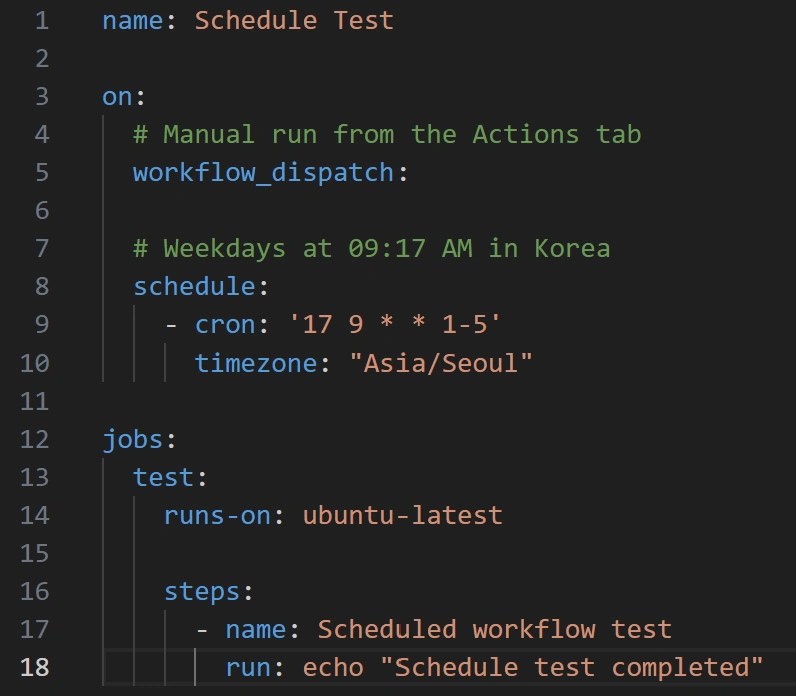
This example runs at 9:17 AM on weekdays in Korea and also keeps a manual
troubleshooting trigger:
on:
  workflow_dispatch:
  schedule:
    - cron: "17 9 * * 1-5"
      timezone: "Asia/Seoul"
Replace Asia/Seoul with the IANA timezone for your location. Minute 17 is
not required by cron syntax; it simply avoids the start of the hour. GitHub
does not support nonstandard shortcuts such as @daily or @hourly, and the
shortest supported schedule interval is five minutes.
The workflow file must be on the default branch
A schedule event does not run a workflow file that exists only on a feature
branch. GitHub’s workflow trigger troubleshooting guide
explains that scheduled workflows are triggered only from the default branch.
The run also uses the latest commit on that branch.
Check the repository’s default branch, then confirm that the workflow exists
there under .github/workflows/:
.github/
└─ workflows/
   └─ daily-report.yml
In a local clone, these commands show the current branch, its upstream, and
the remote repository URL:
git branch --show-current
git status -sb
git remote get-url origin
Being on a non-default local branch does not prove that the schedule has been
registered. Any change that puts the workflow on the default branch should go
through the repository’s normal review process.
Re-enable a disabled workflow
A workflow can be disabled from the Actions tab without deleting its YAML
file. If the workflow page shows Enable workflow, review what the workflow
does before enabling it and then observe the next scheduled time.
With GitHub CLI, you can enable a workflow by its exact file name:
gh workflow enable daily-report.yml
GitHub’s workflow enablement documentation
states that scheduled workflows in public repositories can be disabled after
60 days without repository activity. Scheduled workflows are also disabled
by default in a public fork. Do not assume that the same inactivity rule is
the cause in a private repository.
Before enabling anything, check whether the workflow deploys software, calls
an external API, or creates billable usage. For diagnosis, prefer a harmless
test workflow with no secrets or external writes.
Check the schedule actor after an account change
GitHub’s scheduled-workflow actor documentation
explains that changing the default branch can make that user the schedule
actor. When a disabled schedule is reactivated by a user with write access
who changes the cron expression, that user becomes the actor. Notifications
for scheduled runs also go to the user who last modified the cron syntax.
In an Enterprise Managed Users organization, a scheduled workflow will not
run if its actor account has been suspended or deleted by the identity
provider. Removing a user from an ordinary organization does not by itself
stop every scheduled workflow for which that user is the actor. Confirm the
account type and status before treating an employee departure as the cause.
If the workflow is disabled and the Enterprise Managed User is inactive, an
active user can update the cron expression through the normal review process
and then observe the next scheduled run. If the workflow is already active,
do not make meaningless commits or repeatedly change the default branch just
to replace the actor. Collect the workflow path, cron expression, state, and
actor details for GitHub Support instead.
Avoid the start of the hour
GitHub documents that scheduled events may be delayed during periods of high
Actions load. At the start of an hour, load is particularly high, and some
queued jobs may be dropped when demand is high enough. See GitHub’s
scheduled workflow troubleshooting guidance.
Move a schedule away from minute 0, for example:
on:
  schedule:
    - cron: "23 * * * *"
      timezone: "America/New_York"
This requests a run at 23 minutes past each hour. It does not guarantee that
the run will start at exactly that time. If the workflow handles a payment
cutoff, security response, backup, or another task where one missed run is
unacceptable, decide whether GitHub Actions scheduling alone meets the
reliability requirement.
Add monitoring when a missed run is unacceptable
Moving away from minute 0 reduces one source of delay but does not prevent
all missed runs. Monitoring inside the same scheduled workflow is not enough:
if the schedule never creates a run, the monitoring step never starts either.
| Reliability requirement | Suggested setup |
|---|---|
| A late report or cache refresh is acceptable | Off-minute schedule plus run-history checks |
| A person can restart a missed run | schedule, workflow_dispatch, and a missed-run alert |
| The workflow must start within a deadline | External scheduler or monitor, reviewed fallback dispatch, and separate failure alerts |
An external monitor can query the most recent scheduled run and alert when
its age exceeds the normal interval plus an allowed delay. This read-only
PowerShell example checks whether the newest scheduled run is more than 90
minutes old. Change 90 to a value longer than the real schedule interval.
$workflowFile = "daily-report.yml"
$maxAgeMinutes = 90
$runs = gh run list --workflow $workflowFile --event schedule --all --limit 1 --json createdAt,url |
    ConvertFrom-Json

if (-not $runs -or $runs.Count -eq 0) {
    throw "No scheduled workflow run was found."
}

$lastCreated = [DateTimeOffset]::Parse($runs[0].createdAt)
$ageMinutes = ([DateTimeOffset]::UtcNow - $lastCreated).TotalMinutes

if ($ageMinutes -gt $maxAgeMinutes) {
    throw ("The latest scheduled run is {0:N0} minutes old: {1}" -f $ageMinutes, $runs[0].url)
}
If an external scheduler must also request a fallback run, GitHub provides a
Create a workflow dispatch event
endpoint. The target workflow must include workflow_dispatch, and a
fine-grained token needs Actions: write permission for the target
repository. Limit the token to that repository, store it only in the external
scheduler’s secret store, and never place it in a URL, log, or workflow file.
A successful dispatch request still does not guarantee that a runner will
start or that the job will complete, so monitor those stages separately.
Use a manual run to separate trigger and job failures
Adding workflow_dispatch makes the Run workflow button available in the
Actions tab. GitHub’s manual-run documentation
says that the workflow file must be on the default branch and the user needs
write access.
If the manual run succeeds but no scheduled run appears, investigate the
timezone, default branch, workflow state, actor, and scheduler load before
changing the runner image, installation steps, or secrets. If the manual run
also fails, diagnose the failed job and step instead of the schedule trigger.
Inspect workflow state and scheduled runs with GitHub CLI
These read-only GitHub CLI commands show the default branch, include disabled
workflows, and list only runs created by the schedule event:
gh repo view --json nameWithOwner,defaultBranchRef
gh workflow list --all --json name,path,state
gh run list --workflow daily-report.yml --event schedule --all --limit 10 --json createdAt,startedAt,status,conclusion,headBranch,url
Replace daily-report.yml with the real workflow file name. The
gh repo view output includes
the default branch. GitHub CLI hides disabled workflows by default, so use
--all as documented for gh workflow list.
The --event schedule filter in gh run list
excludes manual runs.
| CLI result | Interpretation and next step |
|---|---|
The workflow is not on defaultBranchRef |
Put the reviewed workflow on the default branch |
The workflow state is not active |
Identify why it was disabled, review its effects, and enable it |
createdAt is later than the scheduled time |
Record trigger delay and move away from minute 0 |
createdAt is close but startedAt is late |
Separate run creation from queue or runner delay |
| No scheduled run exists after an expected time | Collect cron, branch, state, actor, and GitHub Status details for support |
For a private repository, GitHub CLI must be authenticated with an account
that can read the repository. Before sharing output, remove repository names,
branch names, run URLs, or other identifiers that are not needed.
What to collect before contacting support
Check GitHub Status for an Actions incident,
then collect only the information needed to diagnose the trigger:
- Whether the repository is public, private, or a fork
- The default branch name and workflow file path
- The
on.schedulecron expression and timezone - The current workflow state
- The default branch, workflow
state, and recentcreatedAtandstartedAt
values reported by GitHub CLI - Whether the organization uses Enterprise Managed Users and whether the last
schedule actor is active - The last known successful scheduled run
- Expected times, actual creation times, and the number of missing runs
- Whether
workflow_dispatchsucceeds
Do not include secret values, tokens, complete environment-variable lists, or
private logs. When no run was created, there is no job log to inspect, so the
trigger information above is more useful.
Frequently asked questions
Does GitHub Actions cron always use UTC?
UTC is the default when no timezone is provided. Current scheduled-workflow
syntax supports an IANA timezone such as America/New_York or Asia/Seoul,
so local-time schedules can place timezone next to cron.
Does a five-minute schedule run exactly every five minutes?
No. Five minutes is the shortest supported interval, not an on-time delivery
guarantee. A scheduled event can be delayed or dropped during high load.
Why does a manual run work when the schedule does not?
That usually points to a schedule-specific condition rather than the job
itself. Check whether the workflow is on the default branch, whether the cron
and timezone are correct, whether the workflow is enabled, and whether it is
scheduled at the start of the hour.
Summary
When a GitHub Actions scheduled workflow does not run, verify the timezone and
cron expression first, then confirm that the workflow is on the default branch
and enabled. Move the schedule away from minute 0, use a manual run to
separate trigger problems from job failures, and add external monitoring when
a missed run is unacceptable.