ChatGPT Plus Still Shows Free After Payment? Check the Billing Account
If a ChatGPT Plus or Pro payment went through but the account still says
Free, do not subscribe again on another platform. First record the
ChatGPT account currently signed in and identify whether Apple, Google Play,
or chatgpt.com processed the payment. Then sign back in to the ChatGPT account
used for the original purchase. For an Apple App Store purchase, use Restore from that same account. This order helps you diagnose the mismatch
purchases
without creating a second subscription.
This guide was checked against OpenAI’s English Help Center on August 3,
2026. Subscription menus can differ across the web, iOS, Android, and app
versions.
Run this 30-second billing check first

| What you find | Most likely category | First action |
|---|---|---|
| App Store or Google Play shows an active subscription, but ChatGPT says Free | A different ChatGPT account may be signed in | Do not pay again; find the account and sign-in method used for the purchase |
You see This subscription is associated with another OpenAI account |
The app-store account is already linked to another ChatGPT account | Sign in to the ChatGPT account that originally made the mobile purchase |
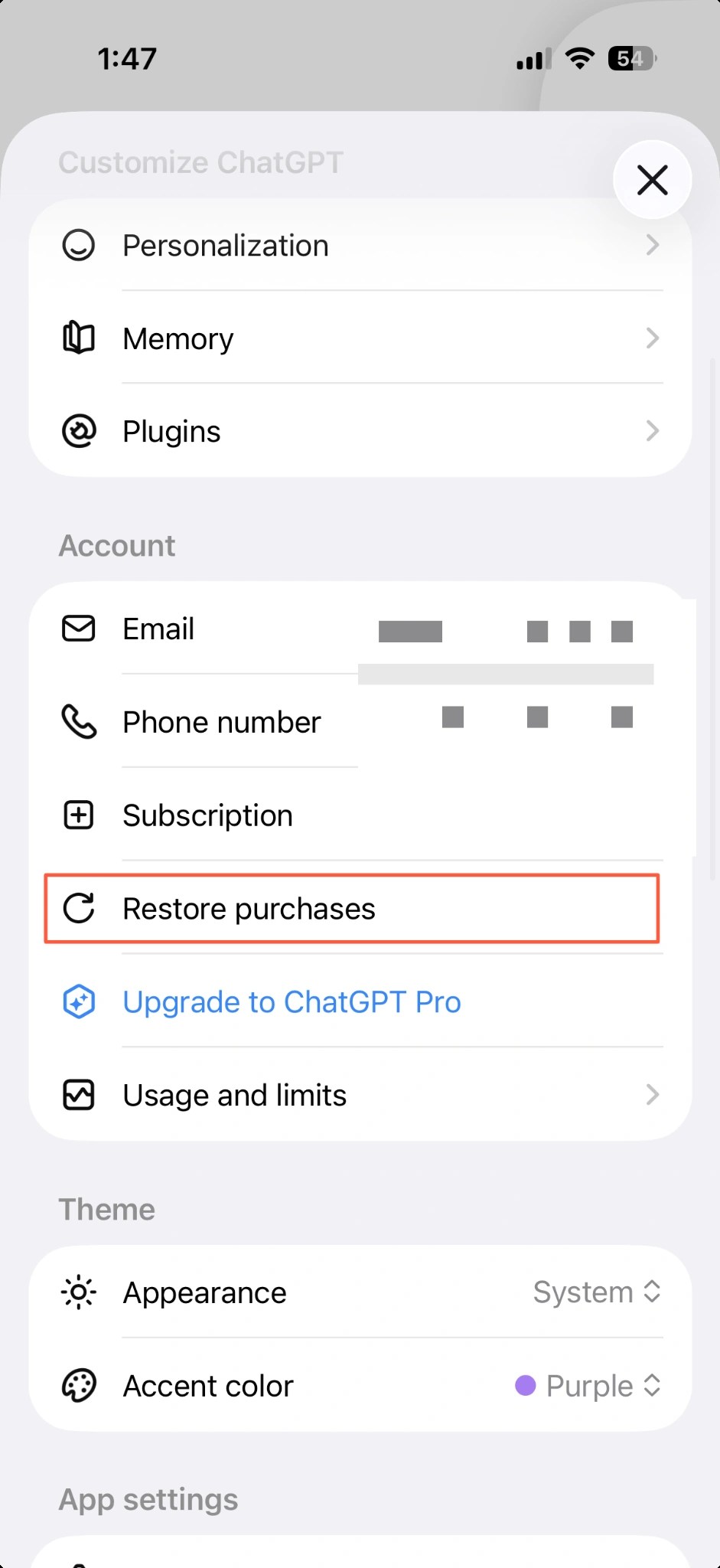
| The Apple subscription and ChatGPT account match, but only the iOS app says Free | The App Store purchase may need to be restored in the app | Open Settings > Account > Restore purchases in the ChatGPT iOS app |
| A web-managed plan is active on chatgpt.com | The mobile app or another browser may use a different ChatGPT account | Compare the account and sign-in method on the web and in the app |
| Two or more platforms show active subscriptions | Duplicate subscriptions may exist | Decide which subscription to keep, then use each billing platform’s cancellation or refund route |
| No platform shows an active subscription | The payment status still needs confirmation | Check the receipt and payment status before contacting support or buying again |
OpenAI’s guide to a
subscription associated with another account
explains that an iOS or Android subscription is linked to both the app-store
account and the ChatGPT account signed in at purchase time. Using the same
phone does not make a different ChatGPT account eligible for that subscription.
Record the account and receipt before signing out
Write down only the information needed to identify the account and purchase:
- The plan currently shown in ChatGPT
Settings - A partially redacted version of the signed-in email address
- The original sign-in method: email and password, Google, Microsoft, or Apple
- The billing platform: Apple App Store, Google Play, or chatgpt.com
- The purchase date, currency, product name, and transaction reference on the receipt
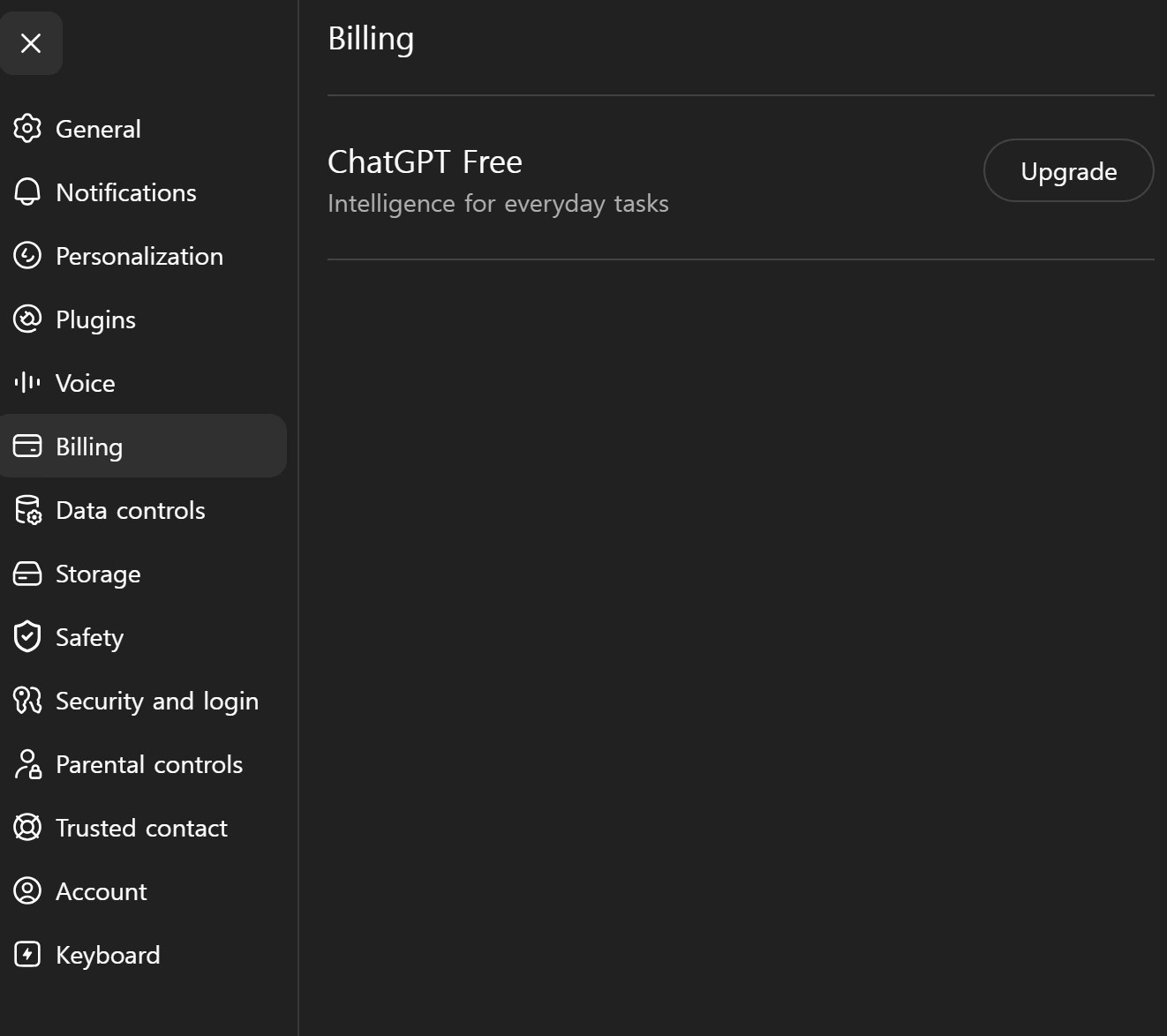
Do not upload a complete receipt to a blog, public forum, or public support
post. An order reference and account email can be used to verify ownership.
Share them only through the official support channel and only when requested.
Sign in with the ChatGPT account used for the purchase
OpenAI’s
login troubleshooting guide
says that if you registered with Continue with Google, Continue with, or
MicrosoftContinue with Apple, you should continue using that method.
Different sign-in methods can create separate accounts and subscriptions, and
OpenAI does not automatically merge them.
- Record the partially redacted account and current sign-in method.
- Sign out of ChatGPT.
- Sign back in with the button or method used for the original purchase.
- Open
Settingsand check whether Plus or Pro now appears. - If several accounts are plausible, inspect each account without starting a new purchase.
If you used Continue with Apple and enabled Hide My Email, the ChatGPT
account may be tied to an @privaterelay.appleid.com address. Use Continue instead of typing your usual email address. A mobile subscription
with Apple
cannot be transferred to another ChatGPT account, so creating a new account
does not move the existing purchase.
Check the platform that processed the payment
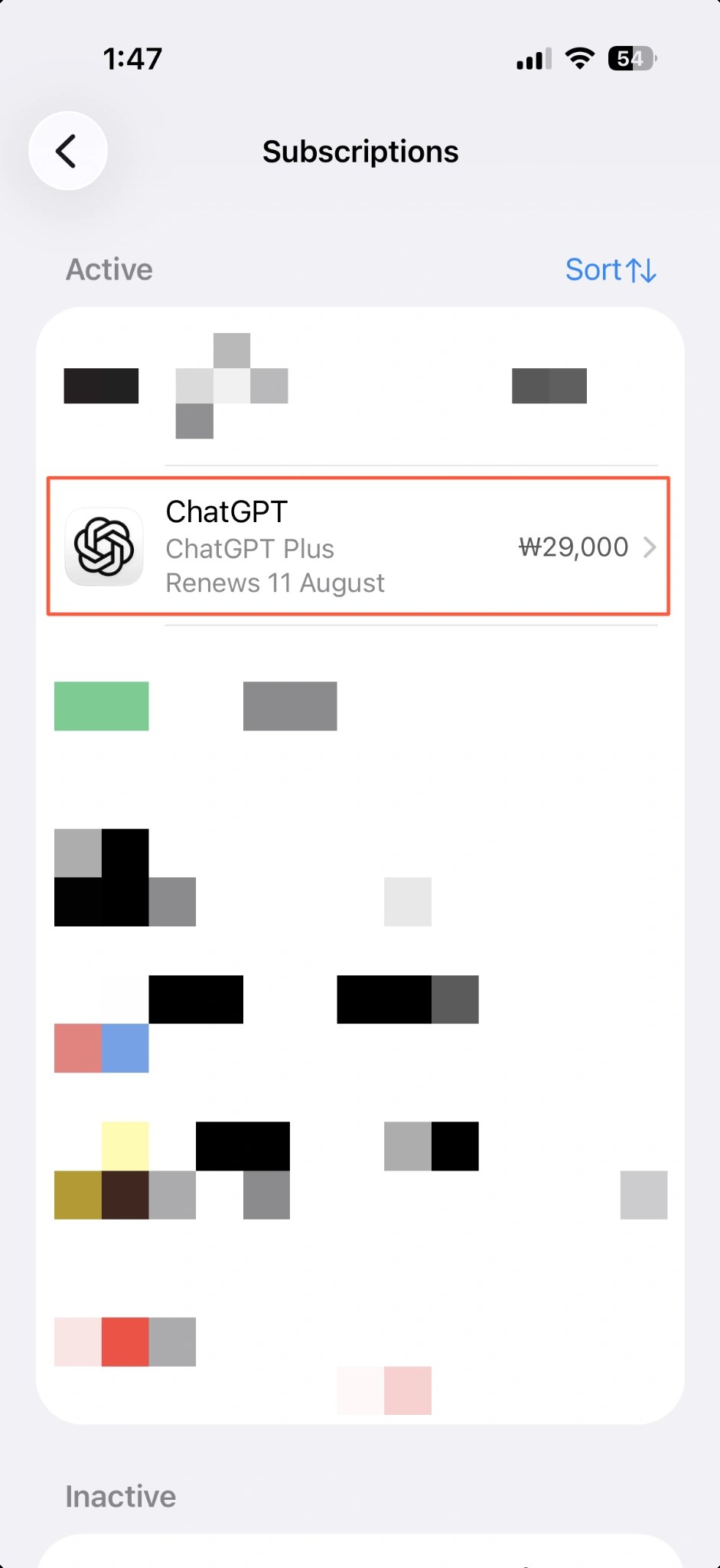
If you subscribed through the Apple App Store
- On the iPhone, open
Settings > [your name] > Subscriptionsand select ChatGPT. - Confirm that the subscription is active and note its renewal or expiration status.
- Sign in to the ChatGPT iOS app with the account used at purchase time.
- Open
Settings > Account > Restore purchasesin the ChatGPT iOS app. - Check the plan again in both the iOS app and chatgpt.com while using the same account.
OpenAI’s
App Store purchase restoration guide
documents Settings > Account > Restore purchases for subscriptions bought
through Apple’s App Store. It does not apply to a subscription purchased on
chatgpt.com.
If you subscribed through Google Play
- Open Google Play and select the Google account used for the subscription.
- Open the subscriptions section and find ChatGPT.
- If the subscription is active, sign back in to the ChatGPT account used at purchase time.
- If the associated-account message continues, do not buy again. Record the original ChatGPT account, Google account, and exact error for support.
The Google Play account and ChatGPT account are separate identities. An active
Play Store subscription does not prove that the ChatGPT account currently open
in the app is the account linked to the purchase.
If you subscribed on chatgpt.com
- Sign in on the web with the ChatGPT account used for payment.
- Open
Settings, then the visibleAccount,Billing, or plan-management section. - Check whether the web-managed subscription is active.
- Use the same ChatGPT account and sign-in method in the mobile app.
OpenAI’s
duplicate-charge prevention guide
explains that Apple manages App Store subscriptions, Google manages Google
Play subscriptions, and chatgpt.com manages web subscriptions. Starting a new
subscription on another platform before resolving the existing one can leave
both subscriptions active.
Do not use these shortcuts
- Do not subscribe again on another platform. You can create a second active subscription and a second charge.
- Do not expect reinstalling the app to relink the purchase. OpenAI says reinstalling does not change the ChatGPT account tied to a mobile subscription.
- Do not assume the subscription can be transferred. Mobile subscriptions cannot be moved between ChatGPT accounts.
- Do not delete the account as a first troubleshooting step. Account deletion affects conversations and data and does not replace platform-specific billing checks.
- Do not post the receipt or payment method publicly. Send only the minimum required evidence through an official support channel.
If the original account still shows Free
If the billing platform shows an active subscription, the original ChatGPT
account is signed in, and an applicable App Store purchase has been restored,
collect the following evidence:
- Billing platform and active-subscription screen
- Purchase date, time zone, product name, and transaction reference
- ChatGPT account email and sign-in method
- Web, iOS, or Android environment and app or browser version
- Exact text of any associated-account error
- Before-and-after screenshots with account and payment details redacted
For a chatgpt.com or Google Play purchase, follow OpenAI’s current
refund request guide while
signed in to the account associated with the charge. Apple subscription
cancellations and refunds must be requested from Apple. Eligibility and
processing differ by purchase route and location, so use the current official
instructions instead of assuming a result from this article.
Frequently asked questions
Can two accounts look as if they use the same email?
Different authentication methods can create separate accounts and
subscriptions. If you used Apple Hide My Email, the account may use a private
relay address. Return through the original Google, Microsoft, or Apple button
instead of assuming that typed email and social sign-in reach the same account.
Will reinstalling ChatGPT make Plus appear?
No. Reinstalling does not change the ChatGPT account linked to the mobile
subscription. Sign in to the purchase account first, and use Restore only for an Apple App Store purchase.
purchases
Where should I request a refund for a duplicate charge?
First identify every active subscription across Apple, Google Play, and
chatgpt.com. Apple handles App Store refunds directly. For Google Play or web
purchases, sign in to the charged ChatGPT account and follow OpenAI’s current
refund instructions.
Summary
When ChatGPT Plus or Pro still shows Free after payment, compare the original
ChatGPT account, original sign-in method, and active subscription on the billing
platform before paying again. For an Apple App Store purchase, use Restore from the same account. If the mismatch remains, send privacy-redacted
purchases
evidence to official support. If the paid plan appears correctly but file
uploads remain blocked, diagnose that separate limit with ToolSolve’s
ChatGPT file upload guide.