ChatGPT Memory Not Saving? Check Memory Summary and Saved Memories
If ChatGPT forgets something after you open a new conversation, do not start
by deleting chats. First check whether you are in a Temporary Chat, whether
Memory is enabled, and whether your account shows the newer Memory summary
or the legacy Saved memories controls. Each case has a different next step.
This guide uses OpenAI’s English-language Help Center as checked on August 2,
2026. OpenAI says the newer memory experience began with Plus and Pro users in
the United States and is expanding across plans and countries. The exact
controls can therefore differ by account, plan, country, and rollout status.
Follow the row below that matches what you actually see.
Separate a saving failure from a recall failure
Memory is not working can describe several different situations. Start with
one observable symptom instead of changing several settings at once.
| What you see | Check first | What it means |
|---|---|---|
| You are using Temporary Chat | The Temporary Chat label at the top of the conversation | Temporary Chat does not use existing memories or create new ones |
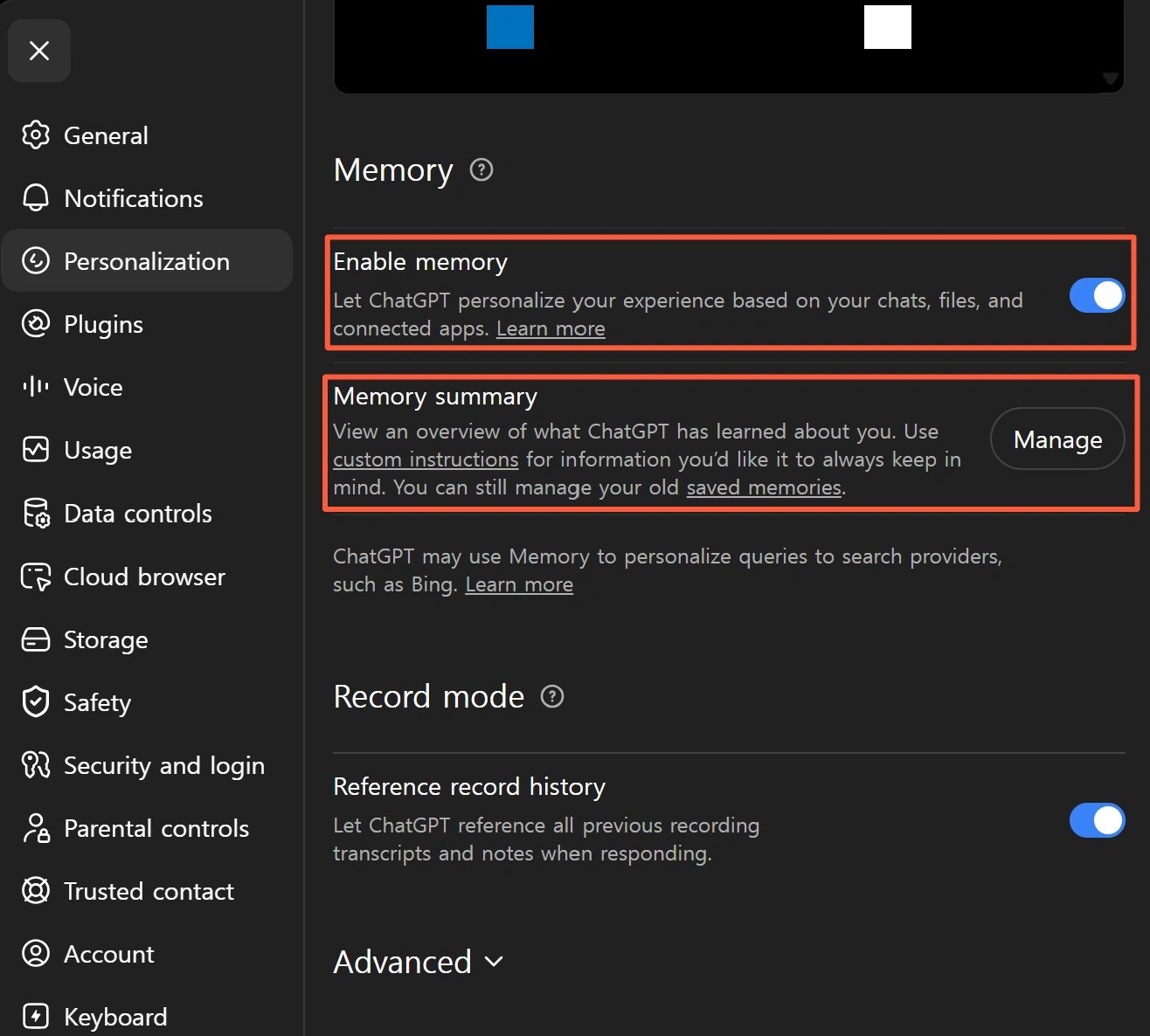
Memory summary appears in Settings |
The summary’s last-updated time and Manage menu | Your account may have the newer memory experience |
Saved memories or Manage memories appears |
Saved items, a capacity warning, and any automatic-management controls | Your account may still use the legacy saved-memory experience |
| The item appears in memory but is ignored in an answer | Ask about it directly in a normal new chat | Saving may have worked; recall or relevance selection may be the problem |
| The Memory page is missing or looks different | Account, displayed plan, web app, and mobile app | Rollout status or a different signed-in account may explain the mismatch |
OpenAI’s Memory FAQ
states that Memory summary is not necessarily a complete item-by-item list of
everything ChatGPT may remember. A missing sentence in the summary does not by
itself prove that saving failed. Ask about the detail directly in a normal new
chat as a second check.
Run the quickest safe test
Use a short disposable sentence. Do not test with personal, financial, medical,
or work information.

- If the conversation is marked Temporary Chat, open a normal chat.
- Open
Settings > Personalization > Memoryand enable Memory. If your UI
uses a different path, follow the visibleMemoryentry. - In the normal chat, enter:
Remember this: the ToolSolve memory test color

is teal. - After ChatGPT responds, check Memory summary or Manage memories for a
related entry. - Open a different normal new chat and ask:
What color did I ask you to

remember for the ToolSolve memory test? - When the test is finished, delete the test memory and ask again in another
new chat to check that it is no longer used.
Do not treat a correct answer in the original conversation as proof that
Memory worked. ChatGPT can use earlier messages in that same chat. Cross-chat
memory must be checked in a separate normal conversation.
If your account shows Memory summary
OpenAI’s
ChatGPT release notes
describe the newer experience as automatically updating memories and reducing
stale or contradictory details. Users can review personalization through
Memory summary and, when shown, memory sources attached to a response.
If the summary is empty or does not immediately show the test sentence:
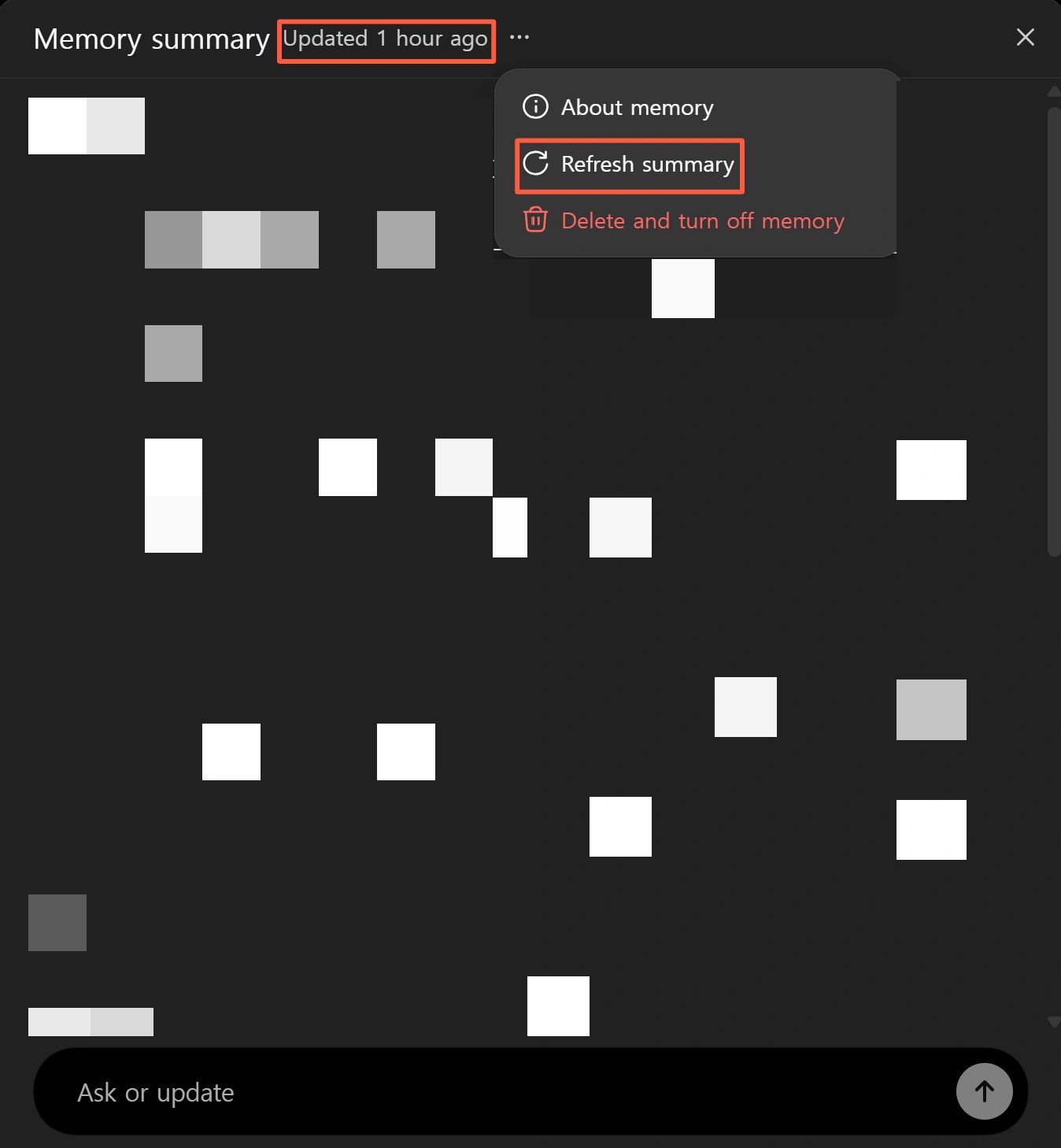
- Check the last-updated time at the top of the summary.
- Open the three-dot menu under Manage and select
Refreshif it appears. - If the account is new or Memory was enabled recently, allow for the
possibility that there is not enough chat history yet. - Ask about the requested detail directly in a normal new chat.
- If a memory-sources icon appears below the answer, inspect which source was
used.
Memory summary may not expose every remembered detail as a separate line. To
fully remove information that can still influence personalization, OpenAI says
you may need to remove every source containing it, including past or archived
chats, files, the summary itself, and connected apps.
If your account shows legacy Saved memories
In the legacy experience, saved memories and chat history are managed
separately. OpenAI’s
saved-memory guide
states that deleting a chat does not remove a saved memory created from that
conversation. Clearing the chat list is therefore not the right first response
to a memory full warning.
- Review the entries under
Manage memories. - Record any durable work rules or long-term preferences you still need.
- Delete one obsolete or duplicate memory rather than clearing everything.
- On the web for Plus or Pro, check automatic memory management if that
control appears in your account. - Repeat the disposable cross-chat test in a normal conversation.
OpenAI says automatic memory management can move less relevant saved memories
into the background to help avoid a full state. The exact control may not be
visible because the memory experience is being rolled out in stages. Do not
change plans only to make your screen match a tutorial. If the legacy page is
not available, skip this section and use the Memory summary checks above.
Do not confuse Temporary Chat with deleting chats
Temporary Chat is designed not to use existing memories or create new ones. It
is useful when you do not want a conversation to affect personalization, but
it is the wrong place to test whether ChatGPT can save a memory.
Saved memories are also separate from chat history in the legacy experience.
Deleting one chat does not automatically remove a saved memory from it. To
fully remove a specific detail, review both the memory control and the original
conversation. Avoid Delete all until you have reviewed exactly what would be
lost.
If a normal new chat still forgets the detail
If Memory is enabled and the disposable test fails in a normal new chat, do
not keep entering personal information as additional test data.
- Check OpenAI Status for a known ChatGPT
incident. - Compare the Memory page on the web and the latest mobile app while signed
into the same account. - Record the timestamp and time zone, displayed plan, browser or app version,
and whether you see Memory summary or legacy Saved memories. - Capture privacy-redacted evidence of the failed save and the new-chat
result. - If no incident is listed and the problem continues, contact OpenAI through
the Help Center support chat with those details.
Do not post your email address, Memory summary, connected files, or private
conversation text in a public forum. Share only the minimum evidence required
through the official support channel.
Frequently asked questions
Does deleting chats fix a memory full warning?
Not by itself. In the legacy experience, saved memories are stored separately
from chat history. Review obsolete or duplicate items under Manage memories
instead of deleting unrelated conversations.
Is an empty Memory summary proof that Memory is broken?
No. OpenAI says the summary may still be empty for a new account, after Memory
was enabled recently, or when there is not enough chat history. Use Refresh if
it appears, then ask about the detail in a normal new chat.
Why does one account show Memory summary while another shows Saved memories?
The newer memory experience is rolling out by plan and country. OpenAI’s own
documentation describes both Memory summary and the legacy Saved memories
experience, so diagnose the controls that appear in the current account rather
than copying a screen from another user.
Summary
When ChatGPT does not retain a requested detail, exclude Temporary Chat first,
confirm that Memory is enabled, and identify whether the account uses Memory
summary or legacy Saved memories. A disposable sentence checked in a separate
normal chat distinguishes a saving problem from a same-chat answer. Delete the
test memory afterward, and record the account, rollout, and timestamp details
before contacting support if the problem continues.