Todoist Recurring Task Skips the Next Date? Fixed vs Completion-Based Schedules
If completing an overdue Todoist task sends it to tomorrow, next week, or next
month, do not keep clicking Complete. Use Undo if it is still visible,
then check whether the task repeats from its scheduled date or from the date you
complete it. Todoist advances one recurring task to its next future date; it
does not create a separate backlog item for every missed occurrence.
This guide was checked against Todoist’s English Help Center on July 31, 2026.
The four recurrence behaviors below were also tested on Todoist Web in Windows
11 with the Asia/Seoul time zone. Menu labels and date parsing can change, so
the repeat rule and next date shown in your current account remain the final
check.
First, decide whether this is expected behavior
Todoist’s guide to
completing a task with a recurring date
explains that an overdue daily task does not move to today when you complete it
today. It moves to the next date instead. Recurring completions appear in the
activity log rather than in the project’s completed-task list.
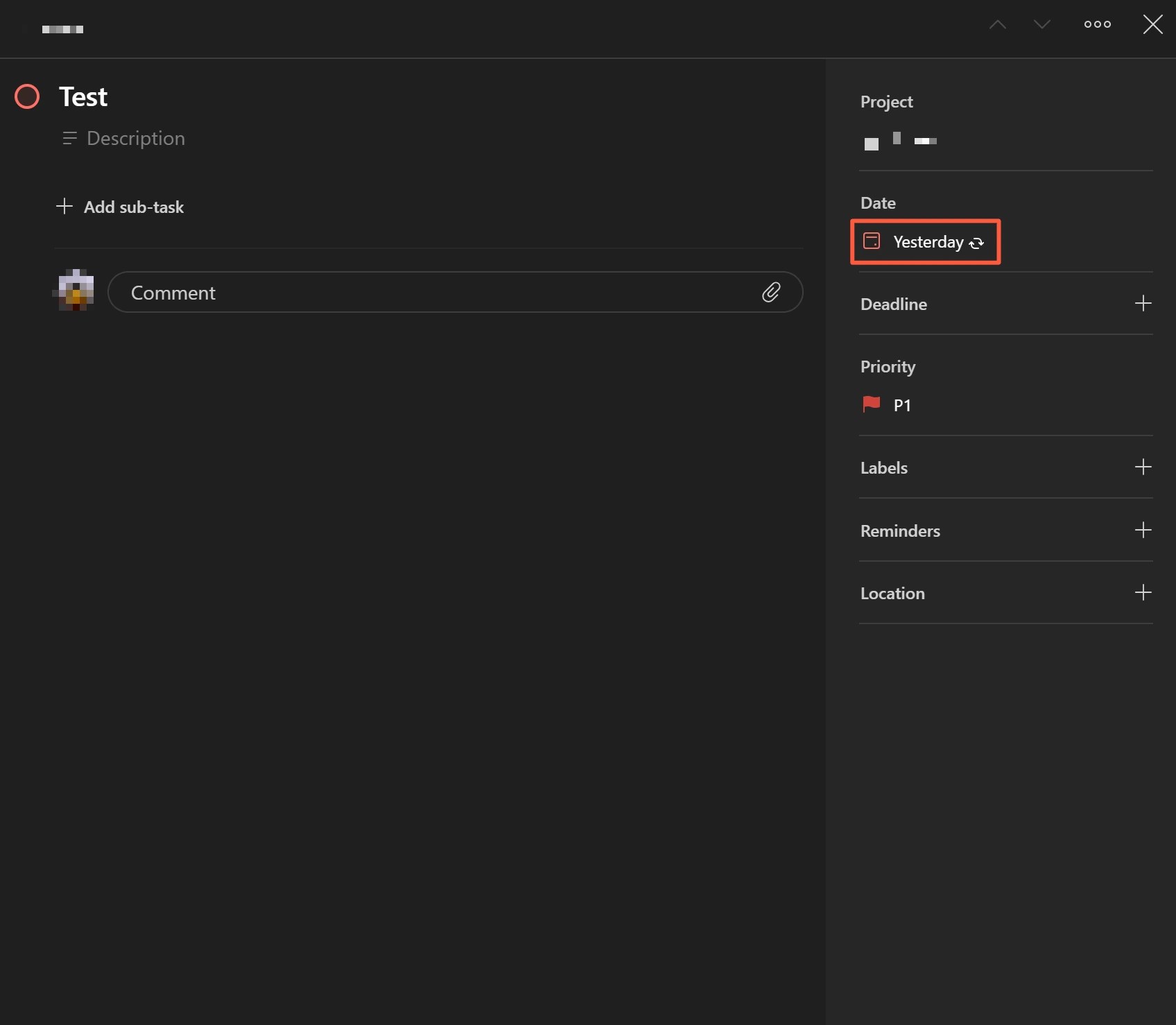
The same result appeared in testing: a daily task due yesterday moved to
tomorrow when it was completed today. That is normal recurrence behavior, not
evidence of a sync failure.
Before changing the task, record:
- Its date and repeat expression before completion
- The date you did the work and the date you clicked Complete
- The next date shown immediately afterward
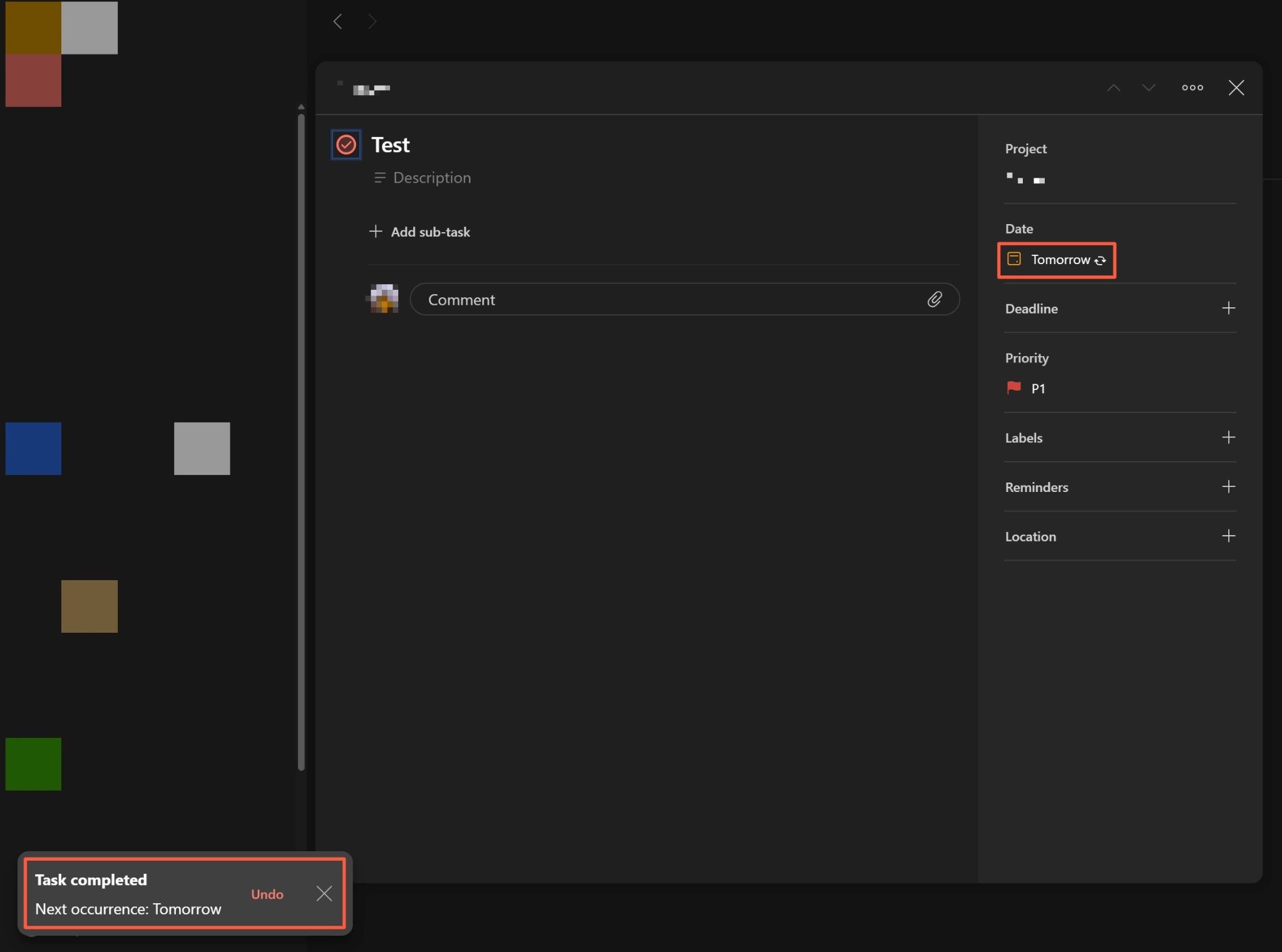
If you completed the task by mistake, select Undo in the short-lived message
at the bottom of the screen. Todoist says this message lasts only a few seconds;
after it disappears, the completion cannot be undone. Do not complete the task
again to chase the date forward. Check the activity log, then correct only the
next date if needed.
Match the symptom to the repeat rule
| What you see | Most likely explanation | First action |
|---|---|---|
| A daily task due yesterday moves to tomorrow when completed today | Todoist moved it to the next future date | Decide whether today’s work still needs a separate record; do not complete it repeatedly |
| A weekly or monthly task drifts whenever it is completed late | The interval is based on the completion date | Check whether the custom repeat rule uses the completed date |
| A task returns to a particular weekday or day of the month | The recurrence is anchored to the scheduled date | Decide whether you need to move only this occurrence or change the whole series |
Postpone moves the task to its next scheduled date |
Only the current occurrence was postponed | Confirm that the underlying repeat rule is unchanged |
| Typing a new date into the task name removes the recurring indicator | The new date replaced the recurring date | Re-create the repeat rule in the date field |
| The next occurrence is not visible even though its date is correct | Future occurrences are hidden by default | Use the project calendar layout and enable future occurrences |
One recurring task is not a backlog of separate missed tasks. If you must record
every missed or completed occurrence independently, do not press Complete
several times on the same task. Use one-off records or another audit trail for
those individual events.
Choose scheduled-date or completion-date recurrence
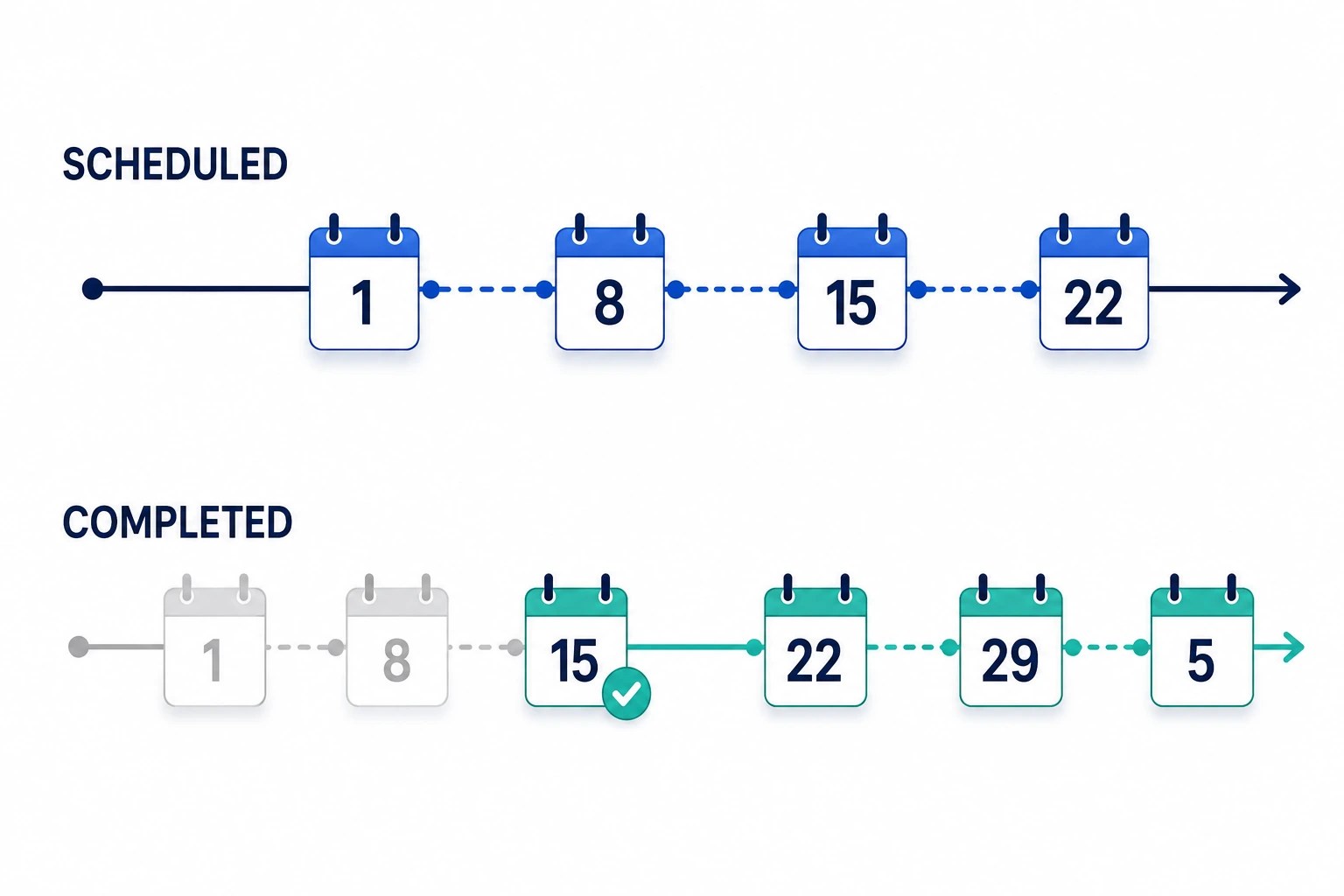
Todoist’s
recurring-date guide
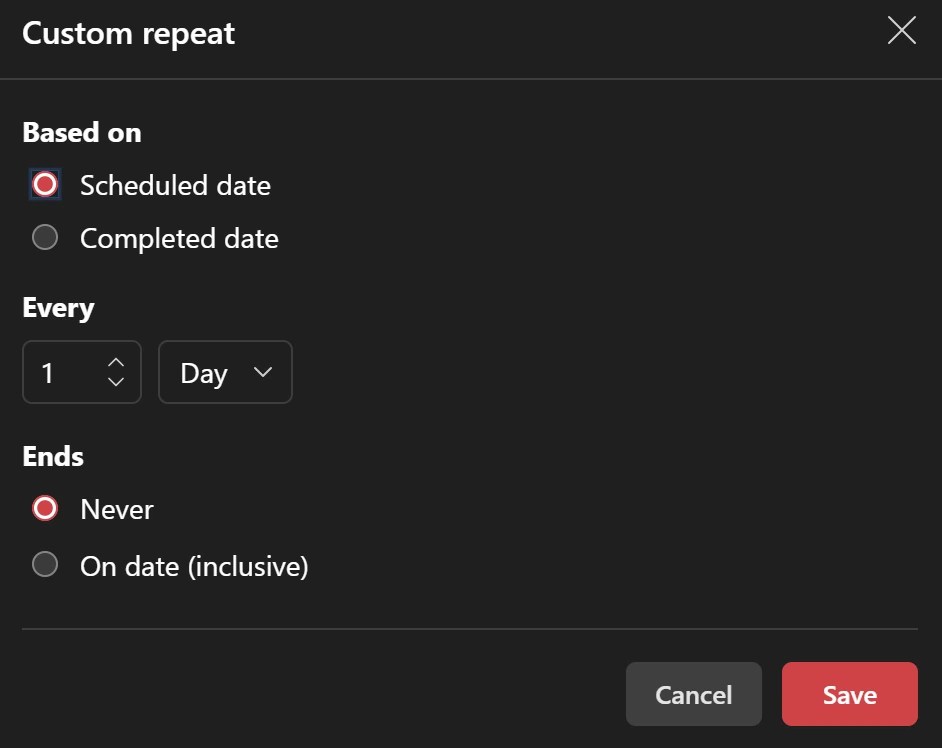
distinguishes every, which repeats from the scheduled date, from every!,
which repeats from the completion date. If natural-language parsing is
ambiguous, open Date > Repeat > Custom and inspect the basis directly.
| Result you want | Repeat basis | Example | When completed late |
|---|---|---|---|
| Keep a weekday or calendar date fixed | Scheduled date | every Monday, every 15th |
Moves to the next future fixed date |
| Wait a full interval after the work is done | Completed date | every! 3 days, every! 2 months |
Counts the new interval from the completion date |
| Perform a task once each day | Daily recurrence | every day |
A task due yesterday moves to tomorrow when completed today |
Do not assume a short expression such as every week behaves exactly like a
weekday-anchored rule such as every Monday. If the calendar position matters,
specify the weekday or day of the month and verify the next date before saving.
Do not mix postponing, rescheduling, and changing the series
Todoist documents Postpone and date-picker rescheduling as changes to the
next occurrence while the underlying schedule stays intact. What happens after
completion depends on the repeat type:
- A fixed recurrence returns to its calendar schedule after the moved
occurrence is completed. - A relative recurrence calculates its next interval from the rescheduled
date. - Typing a new date directly into the task name can replace the recurring date
and remove the repeat rule.
Decide whether you are moving only the current occurrence or changing every
future occurrence. Use the date picker for a one-time move. Edit the recurrence
itself only when the whole series should change.
What the four tests showed
On July 31, 2026, four privacy-safe tasks were tested in a temporary Todoist Web
project on Windows 11 in the Asia/Seoul time zone. Every result matched the
English Help Center description.
| Test | Setup | Action | Documented result | Observed result |
|---|---|---|---|---|
| Overdue daily repeat | every day, due yesterday |
Complete once today | Move to tomorrow | Moved to tomorrow |
| Fixed weekly repeat | Scheduled-date rule on a weekday | Reschedule the current occurrence, then complete it | Return to the next fixed weekday | Returned to the fixed weekday |
| Completion-based interval | every! 3 days |
Complete today | Move to three days after completion | Moved to three days after completion |
| Undo completion | One of the test tasks | Select Undo immediately after completion | Restore the pre-completion date | Restored the original date |
These results separate the three main cases. An overdue daily task advances to
tomorrow, a scheduled-date task returns to its calendar anchor, and only a
completion-date task starts a new interval from the day it was completed. The
short-lived Undo action restored the previous date when used immediately.
Before changing a payment reminder, work deadline, or shared task, create one
temporary task with the same repeat basis and confirm its next date. Delete
only the temporary project after testing; keep the real task’s activity record.
If the next date is still different
If the same setup produces a different next date, collect the following details
for Todoist support:
- The repeat expression and custom repeat basis
- The date before completion, completion time, and date afterward
- The account and device time zones
- Whether you used the web, iOS, Android, or desktop app, plus its version
- Privacy-redacted before-and-after screenshots
Do not post real task names, comments, assignees, or project details publicly.
For a shared project, also check the activity log for another person’s date
change.
Frequently asked questions
Why does yesterday’s daily task skip today when I complete it today?
Todoist advances a recurring task to a future date. Its documented behavior,
confirmed in the test above, moves an overdue daily task from yesterday to
tomorrow when it is completed today. If today’s occurrence needs a separate
record, create a one-off record instead of clicking Complete twice.
Can I undo a recurring-task completion later?
Only the Undo message shown for a few seconds immediately after completion
restores the previous date. After it disappears, Todoist says the completion
cannot be undone. Check the activity log and correct the next recurrence rather
than repeatedly completing the task.
Summary
When a Todoist recurring task appears to skip a date, stop before completing it
again. Check Undo, whether the task was overdue, and whether its recurrence is
based on the scheduled date or completion date. All four tested behaviors
matched Todoist’s documentation. Use a fixed scheduled-date rule for calendar
anchors and a completion-date rule only when a new interval should begin after
the work is finished.